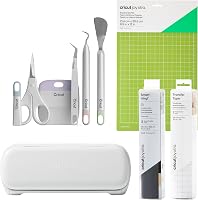
5 Best Cricut Machines for Stickers (October 2026)
The best Cricut machines for making stickers include the Cricut Explore 5 Essential for regular sticker makers, the Cricut Joy 2 Essential for small crafting spaces, and the Cricut Joy Xtra Vinyl Starter Kit for mixed vinyl projects.
On this page (9 sections)
- Which Cricut machine is best for stickers?
- Why does Explore 5 rank above Maker 4 for stickers?
- Should you make printed stickers or cut vinyl decals?
- What should you compare before choosing a Cricut for stickers?
- What is Print Then Cut on a Cricut?
- How do you set up your first sticker project?
- What mistakes cause wasted sticker paper?
- How should you care for sticker supplies and cutting tools?
- Which Cricut should you choose for your sticker projects?
The Cricut Explore 5 Essential is the best Cricut machine for stickers for most crafters because it supports printed designs and includes Printable Vinyl. Choose Joy 2 for small projects and easy storage, or Maker 4 if stickers are part of a wider craft plan.
Start by deciding what “stickers” means for you. Full-color artwork uses an inkjet printer and Print Then Cut, while cut vinyl labels use adhesive vinyl, weeding tools and transfer tape.
That choice matters more than the number of materials a machine can cut. A bundle packed with vinyl supplies may suit pantry labels but still leave you needing printable paper for illustrated sticker sheets.
Our picks at a glance
-
1

-
2

-
3

- 4
 Check it
Cricut Joy Xtra Smart Vinyl Bundle
Best for home organization labels - 5
 Best for multi-craft makersCheck it
Which Cricut machine is best for stickers?
The Explore 5 Essential is the best fit for regular sticker making, while the other bundles serve smaller projects, vinyl labels or specialty crafts. Choose by your usual project first, then compare the supplies you'll actually use.
Cricut Explore 5 Essential: the best Cricut machine for regular stickers
Cricut Explore 5 Essential
- 12 in cutting width
- Print Then Cut
- Works with 100+ materials
- Printable Vinyl included
The strongest all-around choice for regular sticker projects and other paper or vinyl crafts. Included Printable Vinyl gives this mixed craft bundle a useful starting point for printed designs.
Pros
- Room for varied cutting projects
- Printable Vinyl included
- Tools and materials for several craft types
Cons
- Full-color stickers require an inkjet printer
- Requires a compatible Bluetooth device and high-speed internet
The Explore 5 Essential suits crafters who expect to make printed stickers regularly and also want to make cards, decals or apparel. Its 12 in cutting width provides room for varied cutting projects, though that measurement is not its printable sticker area.
The machine works with 100+ popular materials, and the bundle includes Printable Vinyl, Smart Vinyl, Smart Iron-On, cardstock and insert card sets. That mix makes sense if your craft plans extend beyond one kind of sticker.
For a household making school labels, gift stickers and occasional personalized shirts, the mixed supplies have a clear use. For someone making only illustrated sticker sheets, the card and apparel materials are less valuable.
Choose this bundle if you want one machine for regular paper and vinyl work without building your starter supplies piece by piece. You'll still need a compatible inkjet printer for full-color designs.
Skip it if all your projects are small and you need to pack the machine away after every session. Joy 2 is the more focused choice for that situation.
Cricut Joy 2 Essential: for small projects and easy storage
Cricut Joy 2 Essential
- 4.5 in cutting width
- Weighs just over 2 lb
- Print Then Cut
- Printable Vinyl included
A compact choice for small stickers and labels that can be stored between projects. Choose a wider machine if larger designs are central to your plans.
Pros
- Easy to move and store
- Printable Vinyl included
- Supports small printed and cut vinyl projects
Cons
- Narrow cutting width limits project size
- Small working area can mean more batches
The Joy 2 Essential suits small labels, planner stickers and short craft sessions where storage space matters. It has a 4.5 in cutting width and weighs just over 2 lb, making it easier to move between a shelf and a worktable.
Its bundle includes Printable Vinyl along with materials for other everyday crafts. Print Then Cut support means choosing a small machine does not limit you to single-color vinyl designs.
Buy it when your usual artwork is small and you make modest quantities at a time. A machine you can store conveniently may fit your routine better than a larger one that needs a permanent work area.
The tradeoff is project size and layout flexibility. Several small stickers still need to fit within the supported printable area, so picture a whole sheet rather than judging by one sticker's dimensions.
Skip Joy 2 if large labels or repeated batches are central to your plans. Its compact size is useful only when the working area suits the designs you actually want to make.
Cricut Joy Xtra Vinyl Starter Kit: for stickers and cut decals
Cricut Joy Xtra Vinyl Starter Kit
- Print Then Cut with most inkjet printers
- Works with 50+ materials
- StandardGrip Machine Mat included
- Vinyl, transfer tape and tools included
A useful starting kit for crafters who want printed stickers alongside cut vinyl projects. Add suitable printable material before starting full-color designs.
Pros
- Mat and 5-piece tool set included
- Vinyl and transfer tape included
- Supports printed stickers and cut decals
Cons
- Suitable printable material is an extra supply
- Vinyl accessories matter less for printed stickers alone
The Joy Xtra Vinyl Starter Kit suits crafters who want to alternate between printed stickers and cut vinyl designs. It includes a StandardGrip Machine Mat, Smart Vinyl sampler pack, transfer tape and a 5-piece tool set.
Those supplies help with projects such as lettering for storage bins or decals for notebooks. For printed artwork, add suitable printable material rather than treating the included vinyl as a substitute for sticker paper.
Joy Xtra supports Print Then Cut with most inkjet printers and works with 50+ materials. Its appeal here is the mix of vinyl tools and access to a printed-sticker workflow.
Choose it if you want to learn cutting, weeding and transferring alongside sticker making. The accessories serve distinct jobs, which is useful when your projects include both methods.
Skip this kit if you only want peel-and-stick printed sheets and have no plans for vinyl transfers. In that case, included printable supplies deserve more weight than a roll of transfer tape.
Cricut Joy Xtra Smart Vinyl Bundle: for organization labels
Cricut Joy Xtra Smart Vinyl Bundle
- Mat-free compatible Smart Vinyl cutting
- Rainbow permanent vinyl included
- Transfer tape and tools included
- Digital design guides included
Choose this bundle for colorful lettering, storage labels and cut decals. Its included supplies focus on permanent vinyl rather than printed sticker sheets.
Pros
- Compatible Smart Vinyl loads without a mat
- Permanent vinyl and transfer supplies included
- Useful for home and classroom labels
Cons
- Bundle centers on cut vinyl projects
- Included permanent vinyl is not printable sticker paper
The Joy Xtra Smart Vinyl Bundle is the clearest match for home organization labels and colorful cut decals. Its rainbow permanent vinyl, transfer tape, tools and digital guides support that kind of work.
Compatible Smart Vinyl loads without a cutting mat, removing one preparation step for those materials. You still need to weed away unwanted vinyl and move the remaining design with transfer tape.
This bundle makes sense for names on school supplies, lettering on storage bins and simple shapes on gifts. Think about the surface before choosing permanent vinyl, especially if you may want to remove the label later.
Choose it when cut lettering and solid-color shapes make up most of your project list. Several vinyl colors can form a layered design, but each layer adds alignment and application work.
Skip it as a starter bundle for illustrated sticker sheets. The included permanent vinyl serves a different purpose from printable paper, so you would need to plan separately for printed designs.
Cricut Maker 4 Sticker Bundle: for stickers plus specialty crafts
Cricut Maker 4 Sticker Bundle
- Print Then Cut
- Printable sticker paper and adhesive vinyl included
- Works with 300+ materials
- Compatible with 13 tools
A sticker bundle for crafters who also have clear plans for specialty materials. Its broader tool options are less useful if printed stickers are your only project.
Pros
- Printable sticker materials included
- Adhesive vinyl included for decals
- Broad material and tool options
Cons
- Extra capabilities may go unused for stickers
- Some compatible tools are sold separately
The Maker 4 Sticker Bundle suits crafters who have concrete plans for specialty materials as well as stickers. It includes printable sticker paper, adhesive vinyl and tools, giving you supplies for printed designs and cut decals.
Maker 4 works with 300+ materials and 13 compatible tools, including options for projects involving fabric, wood veneer and leather. Some tools are sold separately, so a wider material range does not mean every project is covered by this box.
Choose it if you can name the other crafts you expect to make. A planned fabric or leather project is a stronger reason to buy than a vague hope of using more features someday.
For printed stickers alone, the extra tool options do not replace good artwork, suitable paper or careful setup. They also do not remove the need for an inkjet printer.
Skip it if your entire project list is sticker sheets and simple labels. Its lower position here reflects that narrower buying need, rather than a lack of craft options.
Why does Explore 5 rank above Maker 4 for stickers?
Sticker fit matters more than total craft capability, which puts Explore 5 first in this comparison. We compared the bundles by printed-sticker support, included supplies, project flexibility and the buyer each package serves.
Maker 4 has the broadest material range, but many of those options sit outside sticker making. Explore 5 gives regular sticker makers a useful mix of printable supplies and room for other common crafts.
Joy 2 earns its place through compact storage and small-project use. The Joy Xtra bundles make more sense when their included vinyl supplies match your plans, rather than simply because they contain more accessories.
New users should also weigh the learning involved in preparing artwork and choosing materials. Our Cricut guide for beginners helps you think through those first projects.
Should you make printed stickers or cut vinyl decals?
Choose printed stickers for full-color artwork and cut vinyl for lettering or solid-color shapes. The finished look may overlap, but the supplies and preparation steps differ.
Printed stickers for illustrations and colorful labels
Printed stickers start with artwork sent to a compatible inkjet printer. The Cricut then cuts around the design through Print Then Cut, leaving you with a shape you can peel from its backing.
This method suits illustrated characters, decorative planner stickers and labels with several colors in one image. You don't need to build each color from a separate vinyl layer.
Choose printable material that matches your printer and intended surface. Ordinary sticker paper and printable vinyl can differ in finish, thickness and care needs, so follow the directions for the material you buy.
Cut vinyl for names, lettering and simple shapes
Cut vinyl starts as a colored adhesive sheet or roll. The machine cuts the design, you remove unwanted pieces, and transfer tape helps keep the remaining letters or shapes aligned during application.
This method suits storage labels, names and bold decals. Small lettering takes more care because tiny pieces can be difficult to weed and keep in place.
Transfer tape is useful for those separate vinyl pieces. Most printed peel-and-stick designs stay together on their own backing and do not need the same transfer step.
What should you compare before choosing a Cricut for stickers?
Compare your finished design size, printable layout, workspace and supply needs before counting extra machine features. These details determine how comfortably a machine fits your actual projects.
Cutting width and printable area are different
A machine's cutting width does not tell you how much of a printed sheet can hold stickers. Print Then Cut uses space for registration marks that help the machine locate the artwork.
Check the supported layout for your chosen machine and paper size before planning a sheet. Do not assume edge-to-edge printing or a full-width cutting project translates into the same printable sticker area.
Use your largest common design as the starting point. Then consider how many copies you want per sheet and whether you can leave enough space between them.
Count usable stickers, not just machine features
Batch size depends on artwork dimensions, spacing and the supported printable area. A large machine can still produce few stickers per sheet if each design is large or has an irregular outline.
Sketch a typical sheet before you buy. If you want matching sets, think about keeping each set together so packing and peeling are simpler.
For selling, include printing, drying, loading, cutting and packing in your workflow. Our Cricut guide for small businesses covers choosing a machine around repeat work.
Match the bundle to materials you'll use
A useful bundle reduces the separate supplies you need for your first projects. A box filled with materials for crafts you do not plan to make offers less practical value.
Compare the included supplies with a short project list: illustrated stickers, storage labels, gift tags or shirt designs. This makes the difference between the printable-focused and vinyl-focused bundles easier to see.
For the machine itself, our Cricut Joy Xtra review provides a closer look at that option. Choose accessories after deciding which workflow you want.
Allow space for the whole process
Your work area needs room for the machine, material movement and a flat place to handle printed sheets. Storage dimensions alone do not describe the space needed during a project.
Keep ink, paper, tools and finished sheets within reach without blocking the material path. If you share a table, plan how you'll move a drying print without bending or smearing it.
For a broader comparison of machine families, see our guide to choosing a Cricut machine. Start with your work area and project size, then narrow the options.
What is Print Then Cut on a Cricut?
Print Then Cut pairs your printer's color output with the Cricut's cutting step. The printer creates the artwork and registration marks, and the machine uses those marks to position the cuts.
Prepare the project as a printable design rather than a collection of separate cut-only shapes. Check the preview carefully so details inside an illustration do not become unwanted cut paths.
Leave registration marks clear and keep the print layout unchanged between printing and cutting. Resizing the printed page outside the project can change the relationship between the marks and artwork.
Our guide to what Print Then Cut is on a Cricut explains the workflow in more detail. Use Cricut's Print Then Cut guidance for machine-specific setup and calibration instructions.
How do you set up your first sticker project?
Start with one simple design on suitable printable material before filling a sheet. A small first run helps you resolve artwork, printer and cut settings without using a large batch of supplies.
Prepare the printer and design
Confirm that your printable material is made for an inkjet printer and follow its loading directions. Use the recommended print settings, and let the ink dry as directed before handling the printed surface.
Choose artwork with a clear outline and enough detail for its final size. A design that looks sharp on a large screen can become hard to read when reduced to a small sticker.
A border around the artwork can make the finished shape easier to peel and more forgiving of slight alignment differences. Keep that border consistent across a matching set.
Choose the cut you want
A kiss cut cuts through the sticker layer while leaving its backing intact. A cut-through sticker separates the design and backing from the surrounding sheet, making individual pieces easier to package.
Those results depend on material thickness, pressure and the selected settings. Start with the recommended material setting and use a small sample before committing a full sheet.
For kiss-cut sheets, check that a sticker peels cleanly and the backing stays together. For individual pieces, confirm the shape releases without tearing before repeating the job.
Load and inspect the sheet
Place the sheet squarely on a compatible mat when the workflow requires one, and smooth it without wrinkles. Loose corners or bowed material can shift during cutting.
After cutting, inspect both the outline and the backing before removing everything. If the result needs adjustment, change one setting at a time so you can identify what helped.
Keep a short note of the material, printer settings and cut settings that worked. A saved starting point is useful when you return to the same supplies later.
What mistakes cause wasted sticker paper?
The biggest avoidable mistakes are using the wrong material, changing print scale and skipping a small sample. Careful preparation usually saves more supplies than filling every available space on the first sheet.
Treating all vinyl as printable
Permanent adhesive vinyl and printable vinyl serve different jobs. Do not feed a roll or sheet into your printer unless its instructions identify it as compatible printable material.
Likewise, printer compatibility does not promise a particular finish or water resistance. Choose the material around the sticker's intended use rather than its name alone.
Changing the sheet after printing
Keep the printed sheet at the scale generated for the project. Printer options that shrink or enlarge the page can throw off the planned cut positions.
Avoid covering or trimming away registration marks before the machine reads them. If cuts are consistently offset, follow the calibration guidance instead of repeatedly changing the artwork border.
Assuming every sticker is waterproof
The cutting machine shapes the sticker; it does not determine how the finished sticker handles water. Ink, adhesive, printable material and any protective layer all affect care needs.
This Maker 4 bundle includes materials described as water-resistant. That does not establish dishwasher suitability, and no bundle here should be chosen on that assumption.
Making tiny details too delicate
Thin points, narrow gaps and very small lettering can be hard to cut, peel or weed cleanly. Simplify the outline or enlarge the design before spending time on repeated sheets.
For vinyl labels, a slightly heavier font can also make application easier. Consider how the design will survive handling, not just how it looks on screen.
How should you care for sticker supplies and cutting tools?
Keep materials flat, mats clean and the cutting path clear to support repeatable work. Small storage habits help prevent curled sheets, weak mat hold and debris around the blade.
Store printable sheets in their packaging, away from moisture and direct sunlight. Handle the print surface with clean, dry hands and follow the material's storage instructions.
Replace a mat's protective cover after use, and remove paper scraps gently. Avoid aggressive scraping or unapproved cleaners that could damage its adhesive surface.
Follow the machine's instructions when checking the blade or removing debris. If cuts become ragged, check the material setting, sheet hold and blade condition before adding more pressure.
For finished stickers, clean and dry the intended surface before application. Follow the adhesive directions for firm pressure and any waiting period before exposing the item to water.
Which Cricut should you choose for your sticker projects?
The best Cricut machine for stickers is the one that fits your repeat project, not an occasional idea. Choose Explore 5 Essential for regular printed stickers and common crafts, or Joy 2 Essential for small designs and compact storage.
Pick Joy Xtra Vinyl Starter Kit if you want to learn vinyl transfers alongside printed stickers. Choose the Smart Vinyl Bundle when home labels and cut decals will be your main work.
Buy Maker 4 Sticker Bundle when you also have clear plans for specialty materials. Its extra craft options earn their place when you expect to use them.
Before ordering, write down your first 3 projects and the supplies each needs. Our Cricut cost guide helps you account for those extras, while our guide to Cricut machines for home crafters compares the broader range.
Our top 3 picks at a glance
-
1
-
2
-
3
Frequently asked questions
Which Cricut is best for making stickers?
The Cricut Explore 5 Essential is the best all-around choice here for regular sticker makers because it includes Printable Vinyl and supports Print Then Cut. Choose Joy 2 for small designs and compact storage, or Maker 4 if specialty crafts are also part of your plans.
Can a Cricut make full-color stickers?
Yes, a Cricut with Print Then Cut support can cut around full-color artwork printed by a compatible inkjet printer. The printer adds the color, so you also need inkjet-compatible sticker material, suitable artwork and a layout that fits the machine's supported printable project area.
Is Cricut Joy 2 large enough for stickers?
Cricut Joy 2 suits small stickers, labels and simple decals, with a 4.5 in cutting width that limits larger projects. Check the supported Print Then Cut area for your intended layout before choosing it, especially if you want to arrange several designs on one sheet.
Do you need Cricut Access to make stickers?
No, Cricut Access isn't required for every sticker project because Design Space is free and includes starter content. Access adds more content and certain software features, so check the designs and tools your project uses before deciding whether the optional subscription would be useful to you.
Are Cricut stickers waterproof?
A Cricut machine does not make a sticker waterproof; durability depends on the printable material, ink, protective layers and intended use. Choose supplies with clear care directions, and do not assume that a water-resistant sticker can withstand soaking, dishwasher cycles or long exposure to outdoor conditions.