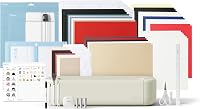
5 Best Cricut Machines for Beginners (October 2026)
The best Cricut machines for beginners include the Cricut Explore 5 Essential for varied first projects, the Cricut Joy Xtra for casual gift makers, and the Cricut Joy 2 Essential for small-space crafters.
On this page (10 sections)
- Which is the best Cricut machine for beginners?
- How should a beginner choose a Cricut?
- Which beginner bundle gives you a useful start?
- What can a beginner make without taking on too much?
- How do you set up your first Cricut project?
- How do you choose between vinyl, iron-on and printed stickers?
- How do you keep a beginner Cricut working well?
- Which common beginner mistakes waste the most material?
- What should you budget for beyond the machine?
- Which Cricut should a beginner buy?
The best Cricut machine for beginners is the Cricut Explore 5 Essential if you want to try cards, decals, shirts and stickers. Its varied bundle gives you several useful starting points without committing to one craft.
Choose Cricut Joy 2 Essential for small everyday projects in a tight space, or Cricut Maker 4 Starter Kit when specialty materials are already part of your plans. The 2 Joy Xtra bundles suit different starts: casual personalized gifts or a clear focus on vinyl decals.
Before choosing, write down 3 things you want to make and measure the largest design. That short list tells you more than a long count of supported materials.
For a broader overview, start with our complete guide to Cricut machines. Our Cricut Maker vs Explore comparison helps if you're deciding between those families.
Our picks at a glance
-
1

-
2

-
3

- 4
 Check it
Cricut Joy Xtra Vinyl Starter Kit
Best for first vinyl decals - 5
 Best for specialty craft plansCheck it
Which is the best Cricut machine for beginners?
Cricut Explore 5 Essential is the strongest starting choice for mixed craft plans. Pick a smaller machine when your projects are consistently small, and choose Maker 4 when a specific specialty craft calls for it.
We compared project fit, included supplies and material options with a beginner's first few months in mind. A machine earns its place here by helping you complete useful projects, rather than simply offering more functions.
There are 4 machine models across these 5 picks because Joy Xtra appears in 2 bundles. Those bundles change what you start with, not which machine you receive.
| Product | Best for | Cutting width | Materials | Included supplies | Our score |
|---|---|---|---|---|---|
| Cricut Explore 5 Essential | varied first projects | 12 in | 100+ popular materials | Materials for up to 65 projects | 9.2 |
| Cricut Joy Xtra | casual gift makers | 50+ materials | 8.6 | ||
| Cricut Joy 2 Essential | small-space crafters | 4.5 in | 75+ materials | Materials for up to 35 projects | 8.4 |
| Cricut Joy Xtra Vinyl Starter Kit | first vinyl decals | 50+ materials | 8.0 | ||
| Cricut Maker 4 Starter Kit | specialty craft plans | 300+ materials | Vinyl, iron-on, tools and materials | 7.6 |
Cricut Explore 5 Essential
- 12 in cutting width
- Works with 100+ materials
- Supplies for up to 65 projects
- Writes, draws, foils, scores and cuts
Choose this bundle to learn paper crafts, vinyl decals, apparel designs and printable stickers with one machine. Its varied supplies let you explore several workflows before buying more materials.
Pros
- Varied materials for several first projects
- Room for wider designs
- Supports full-color sticker projects with an inkjet printer
Cons
- Some compatible tools are sold separately
- Requires a compatible Bluetooth device and high-speed internet
Why is Explore 5 Essential the best beginner Cricut for mixed crafts?
Explore 5 Essential suits the beginner who hasn't settled on one craft. Its 12 in cutting width and support for 100+ materials give you room for paper projects, apparel designs, decals and printable stickers.
The bundle includes Smart Vinyl, Smart Iron-On, Value Cardstock, Insert Card Sets and Printable Vinyl. Cricut estimates supplies for up to 65 projects using an average size of 4 x 6 in, so treat that as a small-project guide rather than a fixed output.
A useful learning path is a cardstock shape, then a simple vinyl name, then an iron-on design. Each introduces a different finishing step without requiring you to learn every function at once.
The machine also writes, draws, foils and scores, with some compatible tools sold separately. Add those functions when a project needs them instead of filling a drawer before your first cut.
Skip this bundle if every planned design is small and easy storage is your main need. For that buyer, Joy 2 Essential offers a more focused start.
Cricut Joy Xtra
- Works with 50+ materials
- Cuts, writes, draws and foils
- Print Then Cut with most inkjet printers
- Includes 30 bonus images
A compact choice for stickers, custom cards, T-shirts and small personalized gifts. The bundle provides basic tools and practice materials for learning your first cuts.
Pros
- Includes a blade, pen, mini weeder and practice materials
- Supports printed sticker designs
- Compact format suits a shared craft space
Cons
- Practice supplies won't cover every planned project
- Some content and software features require a paid subscription
Cricut Joy Xtra suits occasional gift makers who want stickers, cards, T-shirt designs and vinyl decals from a compact machine. This digital-content bundle gives you basic supplies for learning before you commit to larger material packs.
It includes a fine-point blade, fine-point pen, mini weeder, practice-cut materials and 30 bonus images. The weeder helps remove unwanted pieces from cut designs, while the pen gives you another way to personalize a project.
Print Then Cut works with most inkjet printers for full-color designs. You can start with simple shapes and broad borders before moving to artwork with tighter outlines.
Choose this bundle if you want to explore a few crafts and buy further supplies around your favorite one. Our Cricut Joy Xtra review gives more detail on this model.
Skip this version if vinyl transfers are your first goal. The Vinyl Starter Kit below puts more of its bundle contents toward that workflow, so the included extras are more directly useful.
Cricut Joy 2 Essential
- 4.5 in cutting width
- Works with 75+ materials
- Supplies for up to 35 projects
- Weighs just over 2 lb
A portable machine for labels, cards and simple decals that fit its narrow cutting width. The Essential Bundle includes several material types for small everyday crafts.
Pros
- Easy to store between projects
- Varied starter materials
- Supports full-color stickers with an inkjet printer
Cons
- Narrow width limits one-piece designs
- Some compatible tools and accessories are sold separately
Cricut Joy 2 Essential is the clearest fit for small-space crafters making small projects. Its 4.5 in cutting width suits labels, simple decals and cards, and it weighs just over 2 lb.
Its value comes from matching a modest project plan to a machine you can store between sessions. A crafter making pantry labels and gift tags has different needs from someone planning large one-piece shirt designs.
The Essential Bundle includes varied materials, with Cricut estimating up to 35 projects based on an average size of 4 x 6 in. It also supports full-color sticker projects with a home inkjet printer.
Skip it if your favorite designs regularly exceed its width. Splitting a design into pieces adds alignment work, and it can change the look of connected lettering or larger graphics.
Draw your most likely design at its finished size before buying. If it already feels cramped, choose around that real project rather than hoping a smaller machine will become wide enough.
Cricut Joy Xtra Vinyl Starter Kit
- Joy Xtra machine with mat
- Smart Vinyl sampler pack
- Transfer tape roll
- Five-piece tool set
Choose this Joy Xtra bundle when your first goal is applying vinyl names, labels or decals. Its supplies focus on cutting, weeding and transferring adhesive vinyl.
Pros
- Includes a vinyl sampler and transfer tape
- Five-piece tool set supports project finishing
- Machine also supports paper, iron-on and sticker projects
Cons
- Vinyl-focused supplies may not suit a paper-first crafter
- Other project types need their own materials
Cricut Joy Xtra Vinyl Starter Kit suits beginners buying mainly to make adhesive vinyl decals. It includes a mat, Smart Vinyl sampler pack, transfer tape roll and a five-piece tool set.
Those supplies support the whole basic process: cut the design, weed away unwanted vinyl, then use transfer tape to move the remaining pieces together. Keeping letters aligned matters as much as cutting them.
Start with a short name or a plain label in a single color. Tiny script, closely spaced letters and layered colors add work at the weeding and placement stages.
The machine also supports cardstock, iron-on and printable sticker projects, so choosing this bundle doesn't restrict you to vinyl. You'll need suitable supplies when you move into another craft.
Skip this bundle if cards or printed stickers are your main interest, since vinyl transfer supplies won't do those jobs. Our guide to what a Cricut can cut can help you connect materials with project ideas.
Cricut Maker 4 Starter Kit
- Cuts 300+ materials
- 13 compatible tools
- Includes vinyl, iron-on, tools and materials
- Supports longer Smart Material cuts
The right starting point when your plans already include fabric, wood veneer or leather. Included vinyl and iron-on let you learn basic projects before adding specialty tools.
Pros
- Broadest material range in this roundup
- Supports engraving and embossing with compatible tools
- Includes a mat, blade, tools and sampler materials
Cons
- Specialty tools may require separate buys
- Extra capabilities add choices that casual beginners may not need
Cricut Maker 4 Starter Kit suits beginners with a specific specialty craft in mind. It supports 300+ materials and 13 compatible tools, including options for fabric, wood veneer and leather.
The kit includes a cutting mat, blade, tools, vinyl and iron-on sampler materials. Those basics let you learn loading, cutting and finishing before adding the tools needed for a more demanding project.
Compatible tools expand its work to scoring, foiling, engraving and embossing, but some are sold separately. A machine's ability to perform a task doesn't mean every tool for that task comes in the box.
Skip Maker 4 if your plans are limited to simple paper crafts and decals. Those projects don't make use of its main advantage, and extra tool choices can distract from learning the basics.
Choose it when you can name the material and project that justify the added range. Read our Cricut Maker 4 review to decide whether those capabilities belong in your craft plans.
How should a beginner choose a Cricut?
Choose by finished project size, material and workspace, in that order. A machine that fits all 3 will be more useful than one chosen for the longest feature list.
Measure the design, not just the object
A shirt's size doesn't tell you how wide its graphic needs to be. Measure the actual design area on the shirt, card, jar or sign before comparing machines.
For a mug name, a narrow design may be enough. A large connected phrase is harder to divide neatly, so leave room for your likely design rather than choosing around your smallest possible project.
Also check the usable area for the exact project method. A machine's cutting width isn't a promise that every mat, card format or Print Then Cut layout uses that whole width.
Pick the material that creates the finish you want
Adhesive vinyl makes cut shapes and lettering for suitable surfaces. Iron-on uses heat to apply a design, while cardstock becomes the project itself or a layer on it.
Printable sticker material serves a different purpose: it carries artwork from a printer. Decide whether you want a solid-color cut decal or a printed image before choosing supplies.
A higher material count doesn't mean every supported material will be useful to you. If your first 3 projects use paper and vinyl, start with those requirements.
Plan a working area as well as storage
The machine needs a stable surface, plus room for material to move during cutting. Leave space for a computer or mobile device, tools and the project you're assembling.
A small machine can still lead to a crowded table if you're making cards with several loose layers. Check the full workflow, including where wet glue, scraps or heat application will go.
Which beginner bundle gives you a useful start?
The most useful bundle contains materials and tools for your first few projects. Extra images or a large assortment won't help much if your planned craft needs something else.
Explore 5 Essential and Joy 2 Essential give you several material types to try. The Joy Xtra digital-content bundle provides basic tools and practice materials, while its Vinyl Starter Kit focuses on transferring adhesive designs.
Before buying, make a short supply list for one complete project. For a vinyl label, think beyond the cut to weeding, transfer tape and a suitable clean surface.
For an iron-on shirt, account for the blank garment and a suitable heat source. For printed stickers, account for an inkjet printer and compatible printable sheets.
Project estimates aren't a count of finished gifts. Large designs, practice cuts and unused gaps all affect how far a bundle's materials go.
Digital extras also serve a different purpose from physical supplies. Images can help you start designing, but they don't replace the material needed to make the finished object.
What can a beginner make without taking on too much?
Start with a single material, one color and a simple shape. Finish one project before adding layers, tiny details or a new tool.
A short vinyl label teaches sizing, cutting, weeding and transfer. Keep the letters large enough to handle easily, and avoid narrow script for the first attempt.
A cardstock gift tag teaches material placement and clean removal from a mat. Add a separate decorative layer only after the base shape is working well.
A simple iron-on design teaches a different finishing process. Use the material's heat instructions and begin with an easy-to-position shape rather than a design spanning several seams.
For printable stickers, choose artwork with clear spacing around each image. Our guide to Print Then Cut on a Cricut explains how printing and cutting fit together.
If cards are your main interest, our Cricut guide for scrapbooking and card making helps you focus on paper projects. You don't need to learn vinyl transfers before enjoying paper crafts.
How do you set up your first Cricut project?
Set up the machine and software before opening several packs of material. Then complete a small practice cut with a simple design.
Confirm the device and connection first
Explore 5 Essential and Joy 2 Essential require a compatible Bluetooth device and high-speed internet. Check current device requirements before buying, especially if you plan to use an older phone, tablet or computer.
Install Design Space, register the machine and follow its setup prompts. Start with free or included content so you can learn the controls without making extra content decisions.
A larger screen can make sizing and arranging designs easier to see. Use the device that gives you a clear view of the project preview.
Prepare one material and one design
Choose a simple shape or short word, then set its finished dimensions before cutting. Confirm that the material selected in the software matches what you're loading.
Follow the prompts for the correct tool and loading method. Use matless feeding only with materials and project settings intended for that method.
Keep the material straight and the feed path clear. Don't pull on it while the machine is moving it.
Finish the practice piece before repeating it
Check that the cut separates cleanly and that small details remain intact. If something is wrong, change one setting or preparation step at a time so you can identify the cause.
Complete the transfer or assembly before cutting a batch. A design can cut well yet still be awkward to weed, align or apply.
How do you choose between vinyl, iron-on and printed stickers?
Choose by the surface and the result you want. These materials use different finishing steps, even when the design starts in the same software.
Adhesive vinyl for cut lettering and shapes
Adhesive vinyl suits designs made from solid-color pieces. Transfer tape helps move separate letters or shapes together while preserving their spacing.
Clean and dry the intended surface before application, following its care requirements. Try a small offcut on an unobtrusive area if you're unsure how the surface will respond.
Don't assume every vinyl suits every use. Check the material's instructions for surface compatibility, exposure and removal.
Iron-on for suitable fabric projects
Iron-on, also called heat-transfer vinyl or HTV, uses heat rather than ordinary adhesive application. Follow the material's instructions for orientation, mirroring, temperature, pressure and peeling.
A common error is treating iron-on like adhesive vinyl. Its carrier and application process differ, so confirm the workflow before sending the design to cut.
Use a flat, suitable pressing area and check that the blank fabric can handle the required heat. Avoid placing your first design over a seam or uneven area.
Printable material for full-color artwork
Print Then Cut uses a printer for color and the Cricut for the outline. It isn't a way to make the cutting machine print an image.
Use the software's guided printing workflow and keep required registration marks clear. Scaling the print outside that workflow can cause the printed image and cut outline to stop matching.
Choose sticker material for its intended use. A full-color sticker isn't automatically suitable for water exposure or outdoor placement.
How do you keep a beginner Cricut working well?
Keep the feed path, tools and materials free of scraps, and store supplies flat. Simple care reduces avoidable loading and cutting problems.
Remove loose offcuts after each project. If bits collect around a blade or tool, stop the machine and follow its care instructions before clearing them.
When using a mat, keep its protective cover and replace it for storage. Lint, paper fibers and dust can interfere with how evenly the material stays in place.
Use the grip recommended for the material. Too little hold can let a sheet shift, while excess grip can make delicate paper harder to remove.
For flexible paper projects, gently peel the mat away from the paper rather than sharply pulling the paper upward. Support detailed areas as you release them.
Store printable sheets and cardstock away from moisture and curling. Keep small usable offcuts sorted by material so you don't mistake iron-on for adhesive vinyl later.
Which common beginner mistakes waste the most material?
Wrong sizing, wrong material choices and rushed finishing cause many avoidable mistakes. Check the project preview and complete one sample before making several copies.
Buying for a possible future craft
A broad tool range helps only if you'll use it. Choose Maker 4 for a real specialty project, rather than assuming every beginner will eventually need its extra functions.
Likewise, don't choose the smallest machine solely because your first label is tiny. Consider the projects you already expect to make next.
Making the first design too intricate
Small lettering and thin lines increase weeding and handling work. Enlarge the design or simplify it before blaming the machine for a difficult finishing job.
A bold word or simple silhouette is a better first lesson than a detailed layered picture. You can add complexity after the basic process feels familiar.
Cutting a full batch before checking the result
Make one complete item before duplicating it. Check the finished size, spelling, orientation and placement on the actual blank.
For repeat projects, save the working design and note the material used. That gives you a useful starting point next time.
Subscribing before learning the free tools
Design Space includes a free library with 3,000+ images and 100+ fonts. Start there and with your bundle's digital content before deciding whether paid extras fit your habits.
A subscription won't replace learning how to size, arrange and prepare a design. Add content when you know what you need from it.
What should you budget for beyond the machine?
Budget for completing projects, not just buying the cutter. The right extras depend on the craft you choose.
Paper projects may need adhesives and blank cards. Vinyl projects need suitable surfaces and transfer supplies, while iron-on projects need blanks and a suitable heat source.
Printed stickers add printer supplies to the plan. Specialty materials may also require a particular compatible tool or mat.
Buy small amounts while learning what you enjoy. A large pack of the wrong material takes up space without helping you finish a project.
Our guide to how much a Cricut machine costs helps you think through the full setup. Keep replacement materials in mind if you expect to make gifts regularly.
Which Cricut should a beginner buy?
The best Cricut machine for beginners is the one that fits your next 3 projects. Use those projects to make the final choice:
- Choose Explore 5 Essential for a mix of paper crafts, apparel designs, decals and stickers, especially when wider designs are part of the plan.
- Choose Joy Xtra for casual personalized gifts when basic tools and practice materials are the right starting extras.
- Choose Joy 2 Essential for small cards, labels and simple decals when easy storage matters.
- Choose Joy Xtra Vinyl Starter Kit when your first goal is cutting and applying adhesive vinyl.
- Choose Maker 4 Starter Kit when a planned fabric, wood veneer or leather project calls for its broader capabilities.
Before ordering, confirm the size of one real design and list every supply needed to finish it. Use our guide to choosing a Cricut machine to turn that project plan into a clear machine choice.
Our top 3 picks at a glance
-
1
-
2
-
3
Frequently asked questions
Which Cricut machine is easiest for a beginner?
Cricut Explore 5 Essential is our first recommendation for beginners who want several craft options. Its varied bundle lets you try paper, vinyl and iron-on without choosing a narrow path immediately.
If your plans stop at small cards and labels, Cricut Joy 2 Essential is a more focused choice.
Should a beginner get Cricut Joy 2 or Joy Xtra?
Choose Cricut Joy 2 Essential for small cards, labels and simple decals when storage matters. Choose Joy Xtra by the bundle supplies you need: basic tools and practice materials, or the Vinyl Starter Kit for transfers.
Both support full-color sticker projects with an inkjet printer, so that feature alone doesn't settle the choice.
Do beginners need Cricut Access?
No. Design Space includes free content, and Cricut Access is optional.
Start with the free library and any included digital content, then consider a subscription if you repeatedly need paid designs or features.
Our guide to whether you need Cricut Access explains what to consider before subscribing.
Can a beginner Cricut make stickers?
Yes. All the machines in this roundup support Print Then Cut for full-color sticker projects.
A compatible inkjet printer prints the artwork, and the Cricut cuts around it.
You also need suitable printable material; choose that material for the surface and use you have in mind, rather than assuming every sticker sheet behaves alike.