6 Best Cricut Machines for Home Crafters (October 2026)
The best Cricut machines for home crafters include the Cricut Explore 5 Essential for varied home projects, the Cricut Maker 4 for specialty craft projects, and the Cricut Maker 5 Essential for aspiring engravers.
On this page (8 sections)
- Which Cricut machine is best for home crafters?
- Best Cricut machines for home crafting
- How should you choose the best Cricut machine for your projects?
- What else do you need before buying a Cricut?
- How should you set up your Cricut for the first project?
- How do you care for Cricut tools and materials?
- Which common Cricut mistakes should you avoid?
- Which best Cricut machine pick should you buy?
The best Cricut machine for most home crafters is the Cricut Explore 5 Essential because it covers cards, decals, apparel and stickers without requiring a move into specialty craft work. Choose a Maker for engraving and broader material options, or a Joy model for smaller everyday projects.
Start with what you'll make most often, then consider the largest design you'll need. A machine that suits your weekly projects is a better choice than one bought for a technique you might never use.
Our complete Cricut machine guide explains the product families, while how to choose a Cricut machine helps narrow them by project.
Our picks at a glance
-
1

-
2

-
3

Which Cricut machine is best for home crafters?
Explore 5 Essential is the best fit for a mixed home craft routine. Maker models suit specialty work, Joy models favor compact crafting, and Explore 5 Deluxe adds starting supplies to the same Explore machine.
We compared the supported materials, tools, project types and bundle contents. The main buying question is whether a machine can complete your planned projects with the tools and supplies you intend to get.
Write down 3 projects before comparing the options. For example, pantry labels, birthday cards and shirt designs point toward different priorities than engraved gifts and fabric appliques.
| Product | Best for | Material range | Cutting width | Bundle supplies | Our score |
|---|---|---|---|---|---|
| Cricut Explore 5 Essential | varied home projects | 100+ materials | 12 in | Up to 65 projects | 9.2 |
| Cricut Maker 4 | specialty craft projects | 300+ materials | 8.9 | ||
| Cricut Maker 5 Essential | aspiring engravers | 300+ materials | Up to 65 projects | 8.7 | |
| Cricut Joy Xtra | compact sticker crafting | 50+ materials | 8.6 | ||
| Cricut Explore 5 Deluxe | busy family crafters | 100+ materials | 12 in | Up to 100 projects | 8.5 |
| Cricut Joy 2 Essential | occasional label makers | 75+ materials | 4.5 in | Up to 35 projects | 8.4 |
Best Cricut machines for home crafting
Explore 5 Essential leads for general home use, with Maker 4 and Maker 5 Essential following for specialty crafts. The other picks address smaller workspaces, sticker making or households that want more starting materials.
Cricut Explore 5 Essential
- 12 in cutting performance
- Works with 100+ materials
- Writes, draws, foils, scores and cuts
- Supplies for up to 65 projects
The most balanced choice for home crafters making cards, decals, apparel and stickers. Its Essential Bundle lets you explore several crafts before buying more materials.
Pros
- Supports common paper, vinyl and iron-on projects
- Print Then Cut works with a home inkjet printer
- Includes a mix of starter tools and materials
Cons
- Deep Cutting Tool is sold separately
- Some content and software features require Cricut Access
Buy Explore 5 Essential for a broad start in home crafting. Its 12 in cutting performance and support for 100+ materials cover vinyl, iron-on, cardstock and printable materials.
That range suits someone making a birthday card one week and a personalized shirt the next. It also writes, draws, foils and scores, so your plans can include decorated paper projects alongside cut shapes.
The Essential Bundle contains Smart Vinyl, Smart Iron-On, Value Cardstock, Insert Card Sets and Printable Vinyl. Cricut estimates supplies for up to 65 projects, using an average project size of 4 x 6 in.
Those materials help you find the crafts you enjoy before stocking a larger supply shelf. Start with a simple shape or short word, then move to designs with small details once cutting and weeding feel familiar.
Skip this pick if engraving is central to your plans or you only want tiny labels from a machine stored between uses. Our Cricut Explore 5 review explains its tools, bundle and software needs in more detail.
Cricut Maker 4
- Works with 300+ materials
- Cuts, draws, foils, scores, engraves and debosses
- Print Then Cut with most inkjet printers
- Includes 30 bonus images
Choose Maker 4 when engraving, debossing or compatible wood and leather projects are part of your plans. The bundle includes materials and basic tools for getting started.
Pros
- Supports specialty techniques alongside everyday crafts
- Includes a Light Grip Mat, pen and weeder
- Print Then Cut works with most inkjet printers
Cons
- Specialty projects require matching tools and materials
- 22.1 in machine width needs workspace
Buy Maker 4 when specialty techniques are part of your actual project list. It works with 300+ materials, including compatible leather and wood, and supports engraving, debossing and perforating alongside common cutting and paper crafts.
That makes it a sensible choice for someone moving between personalized gifts and everyday cards or decals. You don't need a separate general-purpose cutter to keep making those simpler projects.
The bundle includes a Fine-Point Blade, materials sampler, Fine Point Pen, Light Grip Mat and Weeder. Its 30 bonus images become available in Design Space after machine registration.
The sampler offers a way to learn basic material handling before committing to larger supplies. For specialty work, identify the required tool, compatible material and project instructions before buying blanks.
Maker 4 measures 22.1 in wide, so check your table as well as your storage shelf. Skip it if your plans stop at ordinary vinyl and cardstock, and read our Maker 4 review if its specialty options match your goals.
Cricut Maker 5 Essential
- Works with 300+ materials
- Cuts compatible materials up to 3 mm thick
- Works with 13 tools
- Supplies for up to 65 projects
A useful starting bundle for crafters planning both ordinary cuts and specialty work. Included scoring and engraving tools make those techniques a clear reason to choose it.
Pros
- Includes fine-point cutting, scoring and engraving tools
- Supports fabric and compatible thicker materials
- Includes supplies for several kinds of crafts
Cons
- Other specialty tools are sold separately
- Some content and software features require Cricut Access
Buy Maker 5 Essential when included scoring and engraving tools match the crafts you want to learn. Along with its Premium Fine Point Cutting Tool, those tools give this bundle a clear purpose beyond basic decals.
The machine supports 13 tools and works with 300+ materials. It cuts compatible materials up to 3 mm thick, including specified leather and foam core board, and can engrave compatible materials such as metal and acrylic up to that thickness.
Cutting and engraving are different jobs. The ability to engrave acrylic doesn't mean a machine can cut through an acrylic sheet, and a thickness limit doesn't make every material within it compatible.
This bundle also suits crafters planning fabric appliques, paper projects and personalized apparel. Cricut estimates enough included supplies for up to 65 projects based on an average 4 x 6 in size.
Choose it because those tools and crafts fit your plans. Skip it for labels and simple cards alone, and remember that other specialty tools are sold separately.
Cricut Joy Xtra

- Works with 50+ materials
- Print Then Cut with most inkjet printers
- Cuts, writes, draws and foils
- Includes 30 bonus images
A compact choice for sticker makers who also want cards and vinyl projects. Its practice materials offer a small start before you choose supplies for regular use.
Pros
- Supports full-color Print Then Cut projects
- Compact design suits shared craft spaces
- Includes a fine-point pen and mini weeder
Cons
- Material range is narrower than Explore and Maker
- Practice materials provide a limited starting supply
Buy Joy Xtra for compact sticker crafting with room to explore cards and vinyl projects. It supports Print Then Cut with most inkjet printers and works with 50+ materials, including vinyl, iron-on and cardstock.
The machine cuts, writes, draws and foils. That mix suits someone making decorative stickers, gift labels and occasional shirt designs rather than planning a workshop around specialty materials.
The bundle includes a Fine-Point Blade, Fine Point Pen, Mini Weeder and practice-cut materials. It also includes 30 bonus images, giving you a starting point while you learn the design workflow.
Plan your first supply order around the finished item: printable material for stickers, transfer tape for suitable adhesive vinyl, or compatible iron-on for fabric decoration. The machine is only one part of each process.
Skip Joy Xtra if fabric cutting is your main goal or you need Maker techniques. Read whether a Cricut can cut fabric before choosing tools, and compare your sticker workflow in our best Cricut machines for stickers guide.
Cricut Explore 5 Deluxe
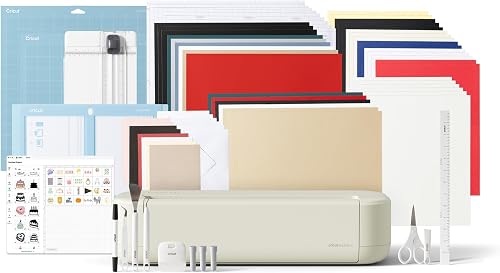
- 12 in cutting performance
- Works with 100+ materials
- Supplies for up to 100 projects
- Print Then Cut with an inkjet printer
The Explore 5 option for households that expect to use a varied supply bundle. Choose it for the extra materials, since the machine capabilities match the Essential version.
Pros
- Larger starting supply bundle than Explore 5 Essential
- Includes vinyl, iron-on, cardstock and printable materials
- Supports common family crafts and personalized gifts
Cons
- Extra supplies help only if they match your projects
- Deep Cutting Tool is sold separately
Buy Explore 5 Deluxe if your household will use the extra starting materials. It has the same machine capabilities as Explore 5 Essential, so the reason to choose this bundle is its supply assortment.
Cricut estimates enough supplies for up to 100 projects, based on an average 4 x 6 in size. Larger designs, practice cuts and unused scraps will change how many finished items you get.
Included materials span Smart Vinyl, Smart Iron-On, Value Cardstock, Insert Card Sets and Printable Vinyl. That mix makes sense for family craft sessions, party decorations and personalized gifts across several occasions.
Before choosing Deluxe, list the projects you'll make in the first few months. A varied bundle helps when you'll use several material types, but a focused crafter may prefer the smaller bundle and supplies in chosen colors.
Skip Deluxe if you're buying extra materials mainly because the project count sounds appealing. It won't add engraving or other Maker capabilities, and it won't replace a printer or the application equipment your chosen craft needs.
Cricut Joy 2 Essential

- 4.5 in cutting width
- Works with 75+ materials
- Weighs just over 2 lb
- Bundle supplies for up to 35 projects
A small machine for labels, cards and simple decals that can be stored between projects. Choose it when your usual designs fit its narrow cutting width.
Pros
- Compact and weighs just over 2 lb
- Includes a varied starter supply bundle
- Supports full-color stickers with a home inkjet printer
Cons
- Narrow cutting width limits larger designs
- Additional tools and accessories are sold separately
Buy Joy 2 Essential for small labels, simple decals and cards that fit a compact routine. Its 4.5 in cutting width is the key limit to consider before choosing it.
The machine weighs just over 2 lb, making it a practical option for moving between a shelf and a shared table. It works with 75+ materials and supports cutting, writing, drawing, foiling and scoring.
The Essential Bundle includes Smart Vinyl, Smart Iron-On, Value Cardstock, Insert Card Sets and Printable Vinyl. Cricut estimates supplies for up to 35 projects using the same average project size as the larger starter bundles.
Joy 2 also supports full-color stickers with a home inkjet printer. That makes it useful for small gift decorations and organizing projects as well as plain cut labels.
Skip it if you regularly want large single-piece designs, since splitting them into sections adds assembly work. Consider Explore for wider projects, and use our Cricut Maker vs Explore guide if specialty materials are also on your list.
How should you choose the best Cricut machine for your projects?
Choose by finished design size, material and required technique, in that order. Then compare bundles, because more included supplies won't solve a mismatch between the machine and your main project.
Which Cricut machine is best for your project size?
Choose a machine around your largest regular design. Explore 5 and Maker 5 offer 12 in cutting performance, while Joy 2's narrower width suits smaller work.
Measure the design itself rather than the item it goes on. A small chest logo and a large shirt-front graphic may both be apparel projects, but they create different cutting needs.
Use paper to mark your intended design size before buying. For a word or name, include the full width of the lettering rather than measuring only one character.
Don't assume cutting width equals the usable area for every workflow. Print Then Cut layouts, material choice and project setup can change the space available, so check your intended layout in Design Space.
Do your materials need Maker tools?
Choose a Maker when a specific material or finish requires its capabilities. Engraved gifts, debossed details and compatible thicker-material projects give you concrete reasons to move beyond Explore.
Material names alone aren't enough to confirm a project. Different leathers, fabrics and woods vary in thickness, backing, stiffness and construction, which affects whether a particular sheet is suitable.
Check the exact material and tool combination before ordering supplies. For fabric work, also consider how you'll keep the material stable and how you'll finish or attach the cut pieces.
If your plans center on paper, adhesive vinyl and iron-on, Explore already covers those categories. More techniques are useful when you'll use them, but they also mean learning additional preparation steps.
Which starter bundle will you actually use?
Choose a bundle by its materials and tools, not its advertised project total. The estimates for the Essential and Deluxe supply bundles use small average projects rather than a fixed count of finished gifts.
A large design can consume much more material than a label. Repeated colors, layout gaps and learning mistakes also affect how far supplies stretch.
Separate materials you want from materials you'll merely store. A card maker may value card sets and cardstock more than extra iron-on, while a shirt crafter may prefer buying suitable transfer material in specific colors.
Bonus images can help you get started, but choose the machine for its capabilities. A useful design library can't compensate for a cutting size or tool range that doesn't fit your work.
What else do you need before buying a Cricut?
Plan for software, workspace and the supplies needed to finish your project. A cutting machine doesn't replace a printer, heat source or the materials that hold a finished design in place.
Check your device and design needs
Design Space is the free app used with these Cricut machines. Explore 5, Maker 5 and Joy 2 require a compatible computer or mobile device, Bluetooth and high-speed internet.
Confirm that the device you intend to use meets the current requirements. Use Cricut's official site for device, material and tool compatibility before buying.
Cricut Access is optional, while some content and software features require payment. Begin with a short list of needed images and fonts, then decide whether individual content or a subscription fits your habits.
Our guide to whether you need Cricut Access explains that choice. Also check the permissions for any design you intend to put on items for sale.
Leave room for the whole workflow
Allow space in front of and behind the cutter for material movement. A machine that fits on a shelf may still need a larger clear area during use.
Keep a separate spot for removing unwanted material, applying transfer tape and assembling projects. Good task lighting helps with small cut details and reduces the chance of overlooking loose pieces.
For stickers, account for your printer and drying space. For apparel, include a suitable heat application setup and follow the transfer material's instructions for heat, pressure and peeling.
How should you set up your Cricut for the first project?
Start with a simple design on a small piece of suitable material. Learn loading, cutting and removal before attempting layered artwork or a large batch.
Register the machine and sort the bundle
Follow the machine's setup instructions, connect it to Design Space and register it. Redeem included digital content through the account you plan to keep using.
Sort tools, materials and accessories by purpose. Keep unfamiliar materials with their packaging so you can identify their type and follow the correct directions later.
Choose one project with only a few steps, such as a short vinyl label or plain cardstock shape. Save tiny lettering, several colors and detailed assembly for later.
Prepare the design and material
Set the finished dimensions in the app before arranging pieces. Check that text is readable, separate parts have enough space and the selected operation matches the tool you intend to use.
Select the correct material setting and compatible blade or tool. When a mat is required, use the appropriate mat and press the material down evenly so it can't shift.
Keep the feed path clear and support the material as directed. Before a large cut, make a small sample cut to check that the material separates cleanly without unwanted tearing.
Finish the project correctly
For adhesive vinyl, remove the unwanted areas before transferring the design. Apply it to a clean, suitable surface and use transfer tape when the design requires it.
For iron-on, check the material instructions for orientation and mirroring before cutting. Follow its application directions rather than reusing settings from a different transfer material.
For Print Then Cut, let the inkjet printer create the image, then follow the app's cutting steps. Keep the printed sheet at the intended scale and avoid altering the layout after printing.
How do you care for Cricut tools and materials?
Keep mats, cutting tools and the feed path free of scraps. Clean handling and proper storage help prevent shifting material and damaged project pieces.
Cover adhesive mats when they're stored, and keep them away from loose fibers and dust. Remove scraps gently with suitable tools instead of digging into the mat surface.
If cardstock curls during removal, try peeling the flexible mat away from the paper while keeping the paper supported. Match the removal method to the material so delicate pieces don't stretch or tear.
Inspect the blade area for caught scraps if cut quality changes, following the machine's safety instructions. Don't keep raising pressure to compensate for debris, a worn blade or a poorly secured sheet.
Store paper flat and protect printable materials from moisture and bent corners. Keep vinyl and iron-on identified so you don't confuse materials that need different preparation and application steps.
Save useful project notes with your design, including the material used and finished dimensions. Repeat projects are easier when you can return to a clear record rather than rebuilding the setup from memory.
Which common Cricut mistakes should you avoid?
Avoid buying for hypothetical projects, rushing material setup and making a batch before one item is right. Most early waste comes from a mismatch in size, material or preparation.
Buying for a material count alone
A larger supported-material count doesn't tell you whether a particular project will work. Start with the exact material, tool and technique you need rather than treating every variation as equally useful.
Likewise, engraving a surface doesn't mean cutting through it. Check the intended operation before buying specialty blanks, especially acrylic, metal or thick materials.
Making designs too small or detailed
Very thin lines and tiny gaps can be difficult to remove cleanly. Simplify small lettering, increase spacing or enlarge the design before assuming the machine needs a different setting.
Consider assembly as well as cutting. A design with many separate pieces may look appealing on screen but take far longer to weed, align and apply.
Making a full batch too soon
Finish one complete item before cutting the rest. Check fit, readability, placement and the final application so an error doesn't spread across every piece of material.
For apparel, confirm the design's position on the garment before applying heat. For stickers, choose ink and printable material suited to the intended use, since cutting a sticker doesn't make it water resistant.
Buying every accessory at the start
Get tools for projects you can name and supplies you're ready to use. Keeping the first few projects simple helps you identify which extras will save effort.
A larger bundle can support that learning, but it doesn't replace a project plan. Leave space in your craft budget for replacement materials once you know your preferred colors and finishes.
Which best Cricut machine pick should you buy?
Choose Explore 5 Essential if your project list mixes cards, decals, shirts and stickers. Move to Explore 5 Deluxe when you'll use the larger supply assortment, rather than expecting a more capable machine.
Choose Maker 4 for a broad specialty craft plan. Pick Maker 5 Essential when its included scoring and engraving tools match the work you want to begin.
Joy Xtra suits compact sticker crafting, while Joy 2 Essential fits small labels and cards you can make at a shared table. Before ordering either, confirm that your largest planned design fits the intended workflow.
The best Cricut machine is the one that covers your repeat projects with a setup you'll use regularly. For a simpler starting shortlist, see our best Cricut machines for beginners, or plan the full setup with our Cricut machine buying and cost guide.
Our top 3 picks at a glance
-
1
-
2
-
3
Frequently asked questions
What is the best Cricut machine for a beginner?
Cricut Explore 5 Essential is the best starting point for beginners who want to try cards, vinyl decals, apparel and stickers. Choose Joy 2 Essential if your plans are mostly small labels and cards.
Pick a Maker only when you can name a specialty project that needs its capabilities.
Does a Cricut print full-color stickers?
A Cricut cuts around printed sticker designs; a separate compatible inkjet printer supplies the color. Use the Print Then Cut workflow in Design Space and choose printable material suited to your printer.
Allow for the cut area shown in the app rather than assuming the whole sheet is usable.
Do you need Cricut Access to use these machines?
Cricut Access is optional for using these machines with the free Design Space app. Some images, fonts and software features require payment or a subscription, while free content is available.
Start with the designs you need for your first projects, then decide whether a subscription would add useful options.