7 Best Vinyl Cutter Machines (October 2026)
The best vinyl cutter machines include the Liene PixCut S1 for photo sticker gifts, the Silhouette Cameo 5 Alpha for varied home crafts, and the Silhouette Portrait 4-9 for smaller vinyl decals.
On this page (8 sections)
- How these vinyl cutters fit different projects
- Which is the best vinyl cutter for your projects?
- How to choose the best vinyl cutter for your materials
- What else do you need besides the cutter?
- How should you set up a vinyl cutter?
- How do you keep cuts clean and reduce waste?
- Which mistakes should you avoid on your first projects?
- Which best vinyl cutter should you buy?
The best vinyl cutter for small printed stickers is the Liene PixCut S1, while the Silhouette Cameo 5 Alpha is the better choice for varied cut-vinyl crafts. Choose a wide VEVOR plotter when you need large, one-piece signs.
Start with the finished project you want to make. A colorful photo sticker, a single-color window decal and a shirt graphic involve different materials and steps.
Our best craft cutting machines for home use guide covers more craft formats. For a choice between the main craft brands, read our Cricut vs Silhouette comparison.
Our picks at a glance
-
1

-
2

-
3
How these vinyl cutters fit different projects
Printing needs and usable cutting width separate these machines more clearly than their extra features. We compared material support, software, connections and included tools against sticker making, home crafts and sign work.
The scores reflect those features and their fit for the projects covered here. The highest-scoring machine is a focused sticker maker, so choose by project type before using score to narrow your options.
For more detail on the larger Silhouette, read our Silhouette Cameo 5 Alpha review. Our best Cricut machines guide offers another route if you're choosing a home craft system.
| Product | Best for | Main use | Media limit | Connection | Our score |
|---|---|---|---|---|---|
| Liene PixCut S1 | photo sticker gifts | Print and cut photo stickers | 4 x 7 in | Bluetooth | 8.3 |
| Silhouette Cameo 5 Alpha | varied home crafts | Vinyl and mixed-material crafts | 8.0 | ||
| Silhouette Portrait 4-9 | smaller vinyl decals | Smaller decals and craft designs | 7.3 | ||
| Likcut S501 Vinyl Cutter | small party favors | Small labels and personalized crafts | 6.9 | ||
| VEVOR 34-Inch Vinyl Cutter | wide shop signs | Wide vinyl signs and decals | 6.8 | ||
| VEVOR 28-Inch Vinyl Cutter | mid-size sign projects | Signs and heat transfer vinyl | 6.7 | ||
| VEVOR 12-Inch Vinyl Cutter | shared craft rooms | Decals, cards and paper crafts | 6.5 |
Which is the best vinyl cutter for your projects?
Choose Liene for printed photo stickers, Silhouette for varied crafts, and a wide plotter for signs. The smaller desktop cutters make sense when your regular designs fit their narrower formats.
Liene PixCut S1
- Prints and cuts in one device
- 300 dpi dye-sublimation printing
- Bluetooth app control
- Automatic lamination during printing
Choose the PixCut S1 for colorful photo stickers without a separate printer. Its paper-based workflow suits labels and gifts rather than wide cut-vinyl designs.
Pros
- Built-in color printing and cutting
- Automatic lamination during printing
- AI extraction of photo subjects
Cons
- Maximum media size is 4 x 7 in
- Focused on photo and sticker paper
The Liene PixCut S1 suits photo sticker gifts, journal decorations and small custom labels. Its built-in printing removes the separate printer step, making it a focused choice for colorful artwork.
It uses 300 dpi thermal dye-sublimation printing and automatically laminates the paper during printing. Liene describes the finished stickers as waterproof and scratch-resistant; that doesn't establish dishwasher suitability or a specific outdoor lifespan.
AI image extraction helps turn a photo subject into a sticker shape. Before sending a design, check details such as hair, narrow gaps and small text so the outline matches what you want to keep.
Its maximum media size is 4 x 7 in, so skip it for wide lettering or long cut-vinyl designs. This is the pick for printing pictures onto sticker paper, rather than cutting shapes from rolls of colored vinyl.
Use smooth surfaces for better adhesion, and remove each completed sheet before starting another. Liene warns that leaving the previous sheet in place can cause cutting errors and damage stickers.
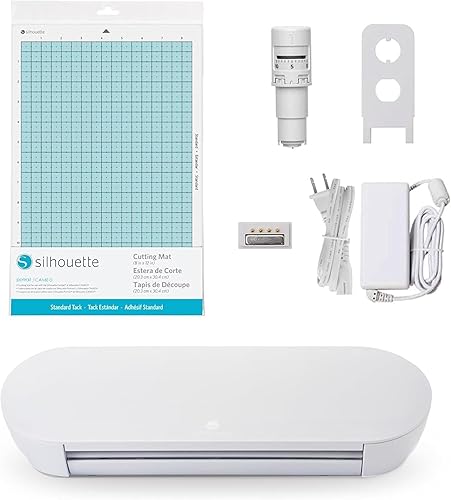
Silhouette Cameo 5 Alpha
- 12 x 24 in active area
- 4-point print and cut registration
- Supports materials up to 3 mm thick
- AutoBlade and Studio software included
The Cameo 5 Alpha suits crafters moving between vinyl, printed artwork and other supported materials. Its registration system aligns cuts with printed designs.
Pros
- Larger active area for home crafts
- 4-point registration system
- Cutting, sketching and embossing support
Cons
- 22.28-inch machine width needs desk space
- Embossing tool is not among the included components
The Silhouette Cameo 5 Alpha is the better fit for a crafter who switches between vinyl decals and other supported materials. Its 12 x 24 in active area gives larger craft designs more room.
The 4-point registration system aligns cuts with printed artwork through vertical and horizontal corrections. It supports a separate print and cut workflow, rather than providing built-in color printing like the Liene.
Silhouette's Intelligent Path Technology organizes cutting order to reduce material stress. The machine supports materials up to 3 mm thick, but thickness alone doesn't establish that every material will work with every blade or tool.
An AutoBlade, cutting mat, Studio software, sketch pens adapter and 100 designs are included. Embossing support adds an option for future projects, though an embossing tool isn't among those components.
Choose it when you expect to use its broader craft range regularly. Skip it if you only want small photo stickers, and allow for its 22.28-inch machine width plus space for material movement.
Silhouette Portrait 4-9
- 9-inch cutting format
- Studio software and PixScan compatibility
- Intelligent Path Technology
- Electric tool compatibility
The Portrait suits smaller designs that fit its narrower cutting format. Choose it for Silhouette software and accessory options when you don't need the Cameo's larger area.
Pros
- Format suits smaller craft designs
- IPT organizes cutting order
- PixScan and ES Mat compatibility
Cons
- Less width than the Cameo 5 Alpha
- Electric tools and ES Mat require a separate accessory check
The Silhouette Portrait 4-9 suits smaller decals and craft designs that fit a 9-inch cutting format. It offers a narrower route into Silhouette's software and accessory options.
That width can cover names, organizing labels and smaller decorative shapes without buying around a larger sheet format. Measure the whole design, including any layout margins, rather than assuming the finished lettering alone determines the required space.
Intelligent Path Technology organizes cut order, while the machine supports cutting, sketching and electric tool options. PixScan and ES Mat compatibility offer more ways to work, but compatibility doesn't mean those accessories come in the box.
Choose the Portrait when your usual projects fit comfortably within its format. Skip it if you're already planning wider one-piece graphics, since splitting those into sections creates extra alignment work during application.
Start with the tools required for your first project. Buy optional accessories when you have a clear use for them, rather than treating every supported function as a necessary starter expense.
Likcut S501 Vinyl Cutter

- 4.5-inch cutting width
- Bluetooth 5.0 and USB 2.0
- Cutting and drawing modes
- Voice and text design prompts
The S501 fits small labels, decals and party projects. Wired and wireless connections give you a choice of setup, while prompt-based design tools offer another way to start artwork.
Pros
- Small format for narrow designs
- Wired and wireless connections
- Vinyl bundle included
Cons
- Limited width for one-piece designs
- Design store access needs internet
The Likcut S501 Vinyl Cutter fits small party favors, short names and narrow labels. Its 4.5-inch cutting width is useful only if those small projects represent most of your work.
Bluetooth 5.0 and USB 2.0 give you wired and wireless connection choices. Cutting and drawing modes let you plan both cut shapes and drawn details, with adjustable pressure for supported materials.
Likcut's design store offers more than 1 million designs and 1,200 fonts, with internet access needed for the store. Voice and text prompts can help create a starting design, but inspect lettering, gaps and outlines before cutting.
The included vinyl bundle helps you begin with cut-vinyl projects, and the front cover provides storage for tools and materials. Keep sharp tools secure when closing or moving the machine.
Choose it for repeated small designs rather than large layouts. Skip it for wide shirt graphics or signs unless you're willing to divide the artwork into pieces and align them yourself.
VEVOR 34-Inch Vinyl Cutter

- 34.3-inch maximum paper feed
- 30.7-inch maximum cutting width
- Adjustable pressure and speed
- USB and COMPIM interfaces
Choose this wide plotter for designs that exceed desktop craft formats. It needs a supported Windows computer and enough room to feed large material.
Pros
- Widest cutting format in this group
- Adjustable pressure and speed
- SVG and PDF import support
Cons
- Needs a dedicated work area
- Requires a supported Windows computer
The VEVOR 34-Inch Vinyl Cutter suits wide signs and large vinyl lettering. Its maximum paper feed is 34.3 in, while the maximum cutting width is 30.7 in.
That difference matters when planning artwork: material can fit through a machine even when the design is too wide to cut. Build your layout around the cutting limit, leaving the margins required for feeding.
Pressure adjusts from 20 to 500 g, and cutting speed adjusts from 20 to 800 mm per second. Use those controls to match the material and design detail instead of treating the highest settings as the best starting point.
It supports SVG and PDF imports and uses a supported Windows computer through USB or COM connections. Plan the computer, material supply and finished-output area together so large sheets don't catch on nearby furniture.
Choose it when wide work is routine. Skip it for a small shared desk or occasional labels, where its format adds setup and material-handling demands without helping the finished design.
VEVOR 28-Inch Vinyl Cutter

- 28.3-inch maximum paper feed
- 24.8-inch maximum cutter width
- LCD pressure and speed controls
- SignMaster software included
This plotter suits sign and heat transfer projects that outgrow desktop cutters. Choose it when its cutting width covers your work and you have a permanent place for it.
Pros
- Wide format for signs and apparel designs
- Five vinyl pieces included
- Pressure and speed controls on the LCD panel
Cons
- Not compatible with Mac
- 39 lb weight makes frequent moving awkward
The VEVOR 28-Inch Vinyl Cutter suits signs and heat transfer graphics that exceed desktop craft formats. It accepts material up to 28.3 in wide and has a maximum cutting width of 24.8 in.
Choose it when that usable width covers your regular work. Buying a wider plotter for a single rare project can be less practical than dividing that design or having it made elsewhere.
The LCD panel controls pressure from 10 to 500 g and speed from 10 to 800 mm per second. The bundle includes five vinyl pieces in different colors, plus tools and accessories.
SignMaster software and COM or USB connections support a Windows workflow; this model is not compatible with Mac. At 39 lb, it belongs in a planned workspace rather than a cupboard you empty after each project.
Skip it if you need mobile-first crafting or frequent portability. Before feeding a long piece, align the material and check that it can travel freely without pulling against its supply.
VEVOR 12-Inch Vinyl Cutter

- 144 sq in active area
- USB, Bluetooth and USB drive access
- Cutting, writing and scoring
- Mac, Windows, Android and iOS support
This desktop VEVOR suits a craft room using several device types. Cutting, writing and scoring let it serve decal and folded-paper projects.
Pros
- Broad device compatibility
- Scoring alongside cutting and writing
- Included software works online or offline
Cons
- 18.1 lb weight affects portability
- Check usable width and power requirements before buying
The VEVOR 12-Inch Vinyl Cutter suits a shared craft room that uses different device types. It supports Mac, Windows, Android and iOS, with USB, Bluetooth and USB drive access.
Cutting, writing or drawing, and scoring make it useful for decals alongside cards and folded-paper projects. Supported materials include vinyl, heat transfer paper, cardstock, foil and specialty paper.
The included design software works online or offline and supports PNG, JPG, SVG and TIF files. Import support gives you file choices, though an image still needs suitable cut paths before it becomes a useful cutting job.
Its active area is 144 sq in; confirm the usable width for your intended layout rather than deriving it from area alone. Also verify the supplied power unit and local supply requirements, since the stated input voltage is 240 V.
Choose it when scoring and device flexibility serve your projects. Skip it if frequent moving is central to your setup, since its 18.1 lb weight adds to the work of packing away.
How to choose the best vinyl cutter for your materials
Match the cutter to the material and finished design before comparing extras. Start with your 3 most likely projects, their finished sizes and how you'll apply them.
The best vinyl cutter starts with the right workflow
For single-color lettering, you usually cut colored adhesive vinyl, remove the unwanted pieces and transfer the design onto a surface. The material supplies the color, so you don't need a printer for that job.
Full-color stickers start with printed artwork. An integrated printer and cutter handles both steps, while a separate print and cut system uses alignment marks to locate the artwork before cutting around it.
If the Liene's combined workflow fits your sticker projects, See it on Amazon. For the separate process, our Print Then Cut guide explains the main steps using Cricut as the example.
Heat transfer vinyl is another workflow: the cutter shapes the design, then a suitable heat source applies it to fabric. Include that application equipment in your plan before buying a cutter for clothing.
Measure usable width, not just the machine name
Cutting width is the measurement that limits a one-piece design. Feed width describes accepted material, while active area describes a working surface or region.
Allow for margins, registration marks and any mat requirements. A design that barely fits the advertised dimensions may not fit the usable layout for your chosen process.
For occasional oversized designs, dividing artwork into sections can work. For regular large signs, enough width to cut each design in one piece saves repeated alignment during application.
Match tools to materials
Material names are only the first compatibility check. The blade or tool, material thickness, backing and cutting method also affect the job.
For fabric work, our guide to cutting fabric with a Cricut explains why preparation and tool choice matter. Those checks are useful even when you're comparing another brand.
Don't use a machine's maximum thickness as proof it can cut any material below that limit. Dense, flexible and brittle materials behave differently, so follow the machine and material instructions for the exact combination.
Check software before planning a large project
The software must let you prepare and send the designs you want to make. Check device support, file import, text tools and any paid features your intended workflow needs.
An imported photo is not automatically a clean cut file. Small specks, overlapping outlines and open paths can create unwanted cuts, so inspect the preview before loading material.
For designs you'll sell, check the commercial-use terms for fonts and artwork. A large design library describes choice, not permission to use every image on products for sale.
What else do you need besides the cutter?
Plan for materials, preparation tools and application supplies, not just the machine. The right starter kit depends on adhesive vinyl, heat transfer vinyl or printed stickers.
For adhesive vinyl, a weeding tool removes unwanted pieces, while transfer tape helps move a cut design without losing its spacing. A scraper or squeegee helps press the vinyl onto the surface.
Heat transfer projects need material suited to the fabric and a heat source that meets its application instructions. Transfer tape for ordinary adhesive vinyl is not a substitute for the carrier used with heat transfer material.
Printed stickers may require a separate printer and compatible printable media, depending on the cutter. Don't assume a bundle includes every mat, blade or tool needed for every advertised function.
Keep the first material order small while learning what suits your projects. Several colors of vinyl are less useful than the correct material, blade and application supplies for the job you actually plan to finish.
How should you set up a vinyl cutter?
Start with a simple shape on scrap material and confirm the full workflow before cutting a batch. A square with a small circle inside checks cutting and weeding without wasting a detailed design.
Leave room for material to move
Set the machine on a stable surface and clear its feed path. Mats, sheets or roll material may need space beyond the machine's body, so don't place it tight against a wall.
Keep cables and loose tools away from moving material. With wide plotters, support the supply so the machine isn't pulling against a snag or a heavy hanging section.
Prepare a simple design first
Check the design's final dimensions and remove duplicate or stray cut lines. Use readable text and generous spacing for early projects, since tiny letters and thin strokes are harder to weed.
Add a surrounding weeding box if your software supports it. This limits the area you need to peel and separates the design from unused material.
Set blade exposure, pressure and speed carefully
More blade and pressure do not automatically improve a cut. For adhesive vinyl, the usual goal is to cut the face layer cleanly while leaving the backing intact.
Begin with the recommended setting for the material and make a small trial cut. Change one setting at a time so you can see which adjustment solves the problem.
Slow down for fine corners and small lettering. Save faster settings for designs and materials that cut and feed cleanly at that speed.
Check orientation before sending the job
Adhesive vinyl is commonly cut face up, while many heat transfer vinyl workflows require the carrier side down and the design mirrored. Follow the exact material instructions rather than applying one rule to every sheet.
Before starting, check the material side, design size and mirror setting together. A clean cut is still wasted if the finished wording faces the wrong way.
How do you keep cuts clean and reduce waste?
Keep the blade path clear, load material straight and save settings that work. Most useful care habits are small tasks done between projects.
Remove scraps from the blade holder according to the machine's instructions. Adhesive buildup or trapped fragments can interfere with cutting, especially around fine details.
Keep cutting mats free of loose debris and store them with their protective covers when supplied. Replace worn consumables when they no longer hold or cut material properly instead of compensating with excessive pressure.
Record settings by material, including pressure, speed, blade and any passes used. Recheck them when switching brands or material types, since similar-looking vinyl can behave differently.
Prepare the application surface too. Dust, grease, texture and curves can affect adhesion even when the cut itself is clean.
For long-term projects, match the vinyl to the intended surface and environment. A cutter shapes the material; it doesn't change that material's suitability for heat, washing or outdoor exposure.
Which mistakes should you avoid on your first projects?
Avoid oversized designs, excessive cutting force and batches made before checking one finished piece. Each mistake wastes more material than a short trial cut.
- Confusing printed stickers with cut vinyl: decide whether color comes from printed artwork or the vinyl itself before choosing equipment.
- Choosing artwork that's too delicate: enlarge tiny text or simplify thin details that won't weed or transfer cleanly.
- Forcing a design into the width limit: leave the margins your feeding or registration workflow requires.
- Increasing every setting at once: adjust one variable, then inspect the cut and backing.
- Starting with a full sheet: finish and apply one small design before repeating it.
- Ignoring software and device support: confirm the exact workflow you need, including any desktop-only steps.
- Leaving weeding until the end of a batch: inspect the first piece promptly so a bad setting doesn't repeat across every sheet.
For repeated labels or merchandise, time the whole process from design preparation through application. Cutting speed is only one part; weeding, alignment and handling can take more attention than the machine's cutting pass.
Which best vinyl cutter should you buy?
Choose the best vinyl cutter around the project you'll repeat most often. Use this decision rule to make the final choice without buying features that won't serve that work.
Pick the Liene PixCut S1 for small full-color photo stickers with printing included. Choose the Cameo 5 Alpha for varied home vinyl crafts, or the Portrait 4-9 when your regular designs fit its narrower format.
Choose the Likcut S501 for small labels and party favors. Consider the VEVOR 12-Inch when shared-device access and scoring matter, after confirming its power requirements and usable layout.
For larger signs, choose the VEVOR 28-Inch if its cutting width covers your work. Move to the 34-Inch model when you regularly need the extra width and have room to handle the material.
Write down your first project, its size and its application method before ordering supplies. If you're still shaping that project list, our guide to Cricut cutting machines explains common craft-machine uses and the workflows behind them.
Our top 3 picks at a glance
-
1
-
2
-
3
Frequently asked questions
What is the best vinyl cutter for home crafts?
The Silhouette Cameo 5 Alpha is the strongest fit here for varied home vinyl crafts, with a larger active area and support for several project types. Choose the Liene PixCut S1 instead if your main goal is full-color photo stickers and you want printing and cutting in one device.
Can a vinyl cutter print designs?
Some machines combine printing and cutting, but a cutter with print and cut registration does not necessarily print. The Liene PixCut S1 includes color printing.
The Cameo 5 Alpha uses registration to align cuts with printed artwork, so plan a separate printing step for that workflow.
What size vinyl cutter should I get?
Choose usable cutting width around your largest regular design, with room for the margins your workflow requires. Feed width measures the material a machine accepts, not the width it can cut.
Measure a few real projects before buying, and include space for material movement around the machine.
Are wide vinyl plotters good for beginners?
A wide plotter can suit a beginner whose main goal is large signs or apparel graphics. Start with simple shapes and small trial cuts while learning blade depth, pressure and material feeding.
For occasional small labels, a desktop cutter is usually a more practical use of workspace.
Do I need a heat press with a vinyl cutter?
You need a suitable heat source when applying heat transfer vinyl, following that material's instructions for temperature, pressure and time. The cutter makes the design but does not attach it to fabric.
Adhesive vinyl uses a different application process and does not need heat simply because it was machine-cut.


