Silhouette Cameo 5 Alpha Review: Worth It? (October 2026)
The Silhouette Cameo 5 Alpha is a strong fit for crafters making printed stickers, heat transfers and drawn designs. Choose the Alpha Plus for wider projects, or the Brother ScanNCut if you want to turn physical drawings into cut files at the machine.
On this page (9 sections)
- What does the Silhouette Cameo 5 Alpha do well?
- When is the Alpha Plus worth the extra space?
- Is the Brother ScanNCut SDX125E a better alternative?
- How do you get clean print and cut alignment?
- What materials can you use with the Alpha?
- Will Silhouette Studio fit the way you design?
- How much room do you need for setup?
- What care habits and mistakes matter most?
- Which Silhouette Cameo 5 Alpha option should you choose?
The Silhouette Cameo 5 Alpha is a good choice for crafters making printed stickers, heat transfers and drawn designs. Its main appeal is the combination of print alignment tools and several craft functions in one machine.
Choose the standard Alpha when your planned projects fit its work area. Move to the Alpha Plus for wider designs, or choose the Brother ScanNCut SDX125E when your projects begin with physical drawings you want to scan.
The deciding question is how your artwork reaches the cutter. A digital design, a printed sheet and a hand-drawn pattern each call for a different workflow.
What does the Silhouette Cameo 5 Alpha do well?
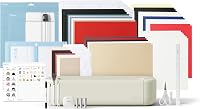
The Cameo 5 Alpha suits print and cut projects with detailed outlines, while also offering cutting, sketching and embossing functions. It has a 12 x 24 in active surface and includes an AutoBlade, cutting mat, sketch pens adapter, Silhouette Studio and 100 designs.
Silhouette Cameo 5 Alpha

- 12 x 24 in active surface area
- 4-point registration system
- AutoBlade
- Studio software
Choose the standard Alpha for printed stickers, heat transfers and drawn designs that fit its work area. It combines print alignment tools with cutting, sketching and embossing functions.
Pros
- 4-point registration with vertical and horizontal corrections
- Fast Sketch Mode for drawing projects
- AutoBlade, cutting mat and sketch pens adapter included
- Studio software and 100 designs included
Cons
- Narrower working width than the Alpha Plus
- Embossing projects require checking the tools needed
Its 4-point registration system uses vertical and horizontal corrections to align cuts with printed artwork. That matters for sticker borders, shaped labels and transfers where a shifted cut would leave an uneven edge.
Silhouette says Intelligent Path Technology arranges the cutting order to reduce material stress and produce smoother cuts. Fast Sketch Mode targets drawing speed, so it is most relevant if pen work is part of your plans.
The brand also describes quiet operation and a maximum cutting speed of 400 mm/s. Treat that speed as a ceiling rather than a pace to use for every design, especially small lettering or delicate shapes.
Who should buy the Silhouette Cameo 5 Alpha?
Choose the Alpha if you expect to move between printed graphics, vinyl designs and pen projects. It gives those projects a shared design workflow, which is more useful than buying extra capacity you rarely need.
Skip it if you mainly want to scan drawings and edit them directly at the machine. The Brother below fits that starting point more closely.
For occasional plain labels or basic shapes, first decide how often you will create something beyond those tasks. The Alpha makes more sense when print alignment or drawing is a regular need.
When is the Alpha Plus worth the extra space?
The Alpha Plus is the better choice for wider designs, particularly when dividing artwork into separate pieces would create extra alignment work. Its cutting width reaches 15 in, with a stated active surface of 15 in x 16 ft.
Silhouette Cameo 5 Alpha Plus

- 15 in cutting width
- 4-point registration system
- AutoBlade
- Power Slide Lid
Choose the Plus when wider designs would otherwise need separate pieces. Its one-touch job repeat also suits repeated layouts, provided you have space to support the material.
Pros
- Up to 15 in cutting width
- 4-point registration and Fast Sketch Mode
- Automatic Power Slide Lid and one-touch job repeat
- AutoBlade and Plus standard tack mat included
Cons
- Needs more desk width than the standard Alpha
- Maximum active surface is not the included mat size
Do not read that maximum length as the size of the supplied mat. Long projects need a suitable material setup and clear space to feed through the machine.
The Plus includes a standard tack cutting mat, AutoBlade, sketch pens adapter and Studio software. Registration provides access to 100 designs and a 1-month Silhouette Design Store subscription.
Its automatic Power Slide Lid and one-touch job repeat add convenience. Repeating a job is useful for recurring layouts, but approve the first result before cutting the rest of a batch.
The Plus also describes electrostatic mat support for material up to 0.5 mm thick. That is a mat support limit, so do not confuse it with a general cutting limit or assume an electrostatic mat comes in the box.
Choose the standard Alpha if your designs fit without splitting. Skip the Plus if its extra width would mainly serve projects you might make someday.
For a vinyl-focused comparison beyond these models, see our guide to the best vinyl cutter machines.
Is the Brother ScanNCut SDX125E a better alternative?
The Brother ScanNCut SDX125E is the better fit for scan-first crafting. Its built-in scanner can turn a drawing into a cut file or scan material so you can place a design on it.
Brother ScanNCut SDX125E

- Built-in scanner
- 5 in touchscreen
- 682 built-in designs
- Cuts material up to 3 mm thick
Choose the Brother when your starting point is a physical drawing, printed shape or piece of material. Its scanner and touchscreen support a workflow with optional computer use.
Pros
- Built-in scanner converts drawings into cut files
- On-machine editing with a 5 in touchscreen
- 682 built-in designs, including quilting patterns and fonts
- Auto blade senses material thickness
Cons
- Included mat may require splitting larger layouts
- Restricted to US sale and use at 120 volts
A 5 in touchscreen supports editing and combining designs at the machine. It also has 682 built-in designs, including 100 quilting patterns and 9 fonts, plus USB and wireless options.
That makes it useful if you prefer bringing a physical pattern to the cutter instead of recreating it in desktop software. Computer use is optional, so it also suits crafters who want less of their process tied to a computer.
The included standard tack mat measures 12 x 12 in. Brother's auto blade senses material thickness, but the brand still directs you to make a trial cut before starting the full project.
Skip this model if a scanner would sit unused and your main goal is working in Silhouette Studio. Choose it for the scanning process, rather than for its built-in design count alone.
Brother restricts this model to US sale and use at 120 volts and states that other use or sale voids the warranty. Those conditions should settle the choice before you compare craft features.
How do you get clean print and cut alignment?
For print and cut, preserve the relationship between the artwork, cut lines and registration marks from design through loading. The cutter follows alignment information on the sheet; it does not print the image itself.
You need a separate printer and suitable printable material. Your usable design space must fit both the printer's printable area and the cutting setup, with room left for registration marks.
Print at the scale required by the software instructions. An automatic “fit to page” setting can change the artwork size and move its position relative to the intended cut.
Keep marks clear of artwork and avoid placing them outside the printable area. Load the sheet in the correct orientation and keep it flat so the machine can read and cut it consistently.
Start with a small design that has an easy-to-see border. Check alignment before filling a sheet with tiny stickers, where a small shift is harder to judge and wastes more finished artwork.
For sticker-heavy projects, compare the best Cricut machines for stickers. Our Cricut vs Silhouette comparison can help if your larger decision is between those design systems.
What materials can you use with the Alpha?
The standard Alpha supports materials up to 3 mm thick, including vinyl, fabric, banner paper, card stock, glossy film and glossy photo paper. Thickness alone does not establish that a material is suitable for a particular tool or design.
Dense material, loose fibers and delicate surface coatings can each need a different approach. Check material and tool guidance before starting, especially when moving away from simple paper or vinyl.
For adhesive vinyl, decide whether you want to cut only the top layer or cut through the backing too. Those are different jobs, and using the wrong setup can make weeding or transfer harder.
Heat-transfer material may require mirroring the design before cutting. Follow the material's instructions for orientation and application rather than carrying over settings from adhesive vinyl.
Fabric needs enough support to stay still as the blade moves. If you are comparing fabric workflows across brands, read our guide to cutting fabric with a Cricut.
Embossing is a separate task from ordinary blade cutting. Confirm the required tool and material setup before choosing the Alpha mainly for that function.
Will Silhouette Studio fit the way you design?
Silhouette Studio fits buyers who want to prepare and arrange designs on a computer before sending them to the cutter. Check your computer requirements and artwork import needs before choosing the machine.
If you already use another design program, trace one real project from start to finish on paper. Note the file format you export, any editing you need and how you will set the final dimensions.
Then check that the software edition you plan to use supports those steps. Included software should not be taken to mean every optional feature or import format is included.
Beginners should start with a simple shape or included design. Learning page size, cut lines and material settings on a small project is easier than solving all three during a detailed sticker sheet.
The complete guide to Cricut and craft cutting machines covers broader machine choices. If you are unsure how often you would use one, whether a Cricut machine is worth it offers a useful way to assess the commitment.
How much room do you need for setup?
Plan for material movement as well as the machine's footprint. The standard Alpha is 22.28 in wide, while the Plus is 25.28 in wide, but neither measurement tells you the full working space.
Choose a stable surface and leave clearance along the material feed path. A mat that catches on a wall, cable or desk edge can disrupt an otherwise correct setup.
Store sheets flat and keep mats where their surfaces will stay clean. Also leave room to weed vinyl, lift paper pieces and handle finished work without bending it against the cutter.
For the first project, follow this order:
- Install the software and complete the machine setup instructions.
- Match the design's page size and orientation to the material.
- Fit the correct tool and prepare the mat as directed.
- Make a small trial cut using a scrap of the same material.
- Check the result before sending the complete design.
Start with one material and one basic design. Changing the blade setting, material and artwork at the same time makes a poor result harder to diagnose.
What care habits and mistakes matter most?
Keep the mat, blade area and material path free of scraps, and inspect them before changing settings to solve a poor cut. A loose offcut or curled sheet can cause trouble that extra cutting force will not fix.
Follow the manufacturer's cleaning directions for blades and mats. Avoid unapproved solvents or improvised sharpening methods, and protect the mat surface during storage.
Peel delicate pieces away slowly while supporting the surrounding sheet. If paper curls during removal, change your removal technique before assuming the cutter caused it.
These are the mistakes most likely to waste material:
- Starting at maximum speed: Use a setting suited to the material and detail level, especially for small text.
- Skipping the sample: Check cut depth and clean separation on a small area before committing the sheet.
- Using one setting for every material: Similar-looking card stock or vinyl can behave differently.
- Designing details too small to handle: Tiny cutouts may be difficult to weed, lift or transfer even when their outlines cut correctly.
- Repeating an unchecked job: Confirm alignment and cut depth on the first piece before making multiples.
Save successful project settings with notes about the exact material. That gives you a useful starting point next time, while leaving room to adjust for a different sheet or worn consumable.
Which Silhouette Cameo 5 Alpha option should you choose?
Choose the Silhouette Cameo 5 Alpha when most of your work starts as digital artwork and you want to cut printed designs, vinyl shapes or drawn projects. Pick the standard model if those designs fit without dividing them into awkward sections.
Choose the Alpha Plus when you can name a regular project that needs its wider capacity. Choose the Brother ScanNCut SDX125E when scanning physical artwork and editing at the machine would remove steps from your routine.
Before ordering, sketch your next 3 projects and write down their finished dimensions, materials and starting artwork. That short list will make the right workflow clearer than a long feature comparison.
If you are still comparing machine families, use our Cricut Maker vs Explore guide to narrow the Cricut alternatives around those same projects.
Frequently asked questions
What is the difference between the Cameo 5 Alpha and Alpha Plus?
The main difference is working width: the standard Alpha has a 12 x 24 in active surface, while the Plus cuts up to 15 in wide. The Plus also adds an automatic Power Slide Lid and one-touch job repeat.
Choose by the size of your actual designs and available workspace.
Can the Silhouette Cameo 5 Alpha cut printed stickers?
Yes, the Cameo 5 Alpha uses 4-point registration to align cuts around printed stickers and other artwork. You still need a printer for the printed image.
Keep the print scale unchanged, leave registration marks clear and make a small sample before committing a full sheet of sticker material.
Does the Cameo 5 Alpha include design software?
Yes, the Cameo 5 Alpha includes Silhouette Studio and 100 designs, plus an AutoBlade, cutting mat and sketch pens adapter. Check software compatibility and the import options needed for your own artwork before buying.
Included software does not mean every file type or optional software feature is included.
Should I choose the Cameo 5 Alpha or Brother ScanNCut?
Choose the Cameo 5 Alpha for a design workflow centered on Silhouette Studio, printed artwork and sketching. Choose the Brother ScanNCut SDX125E when scanning physical drawings or positioning cuts on scanned material matters more.
Its touchscreen supports on-machine editing, and computer use is optional.