Cricut Maker vs Explore: Which Should You Buy? (October 2026)
For Cricut Maker vs Explore, choose Explore 5 for cards, vinyl, stickers and iron-on apparel. Choose Maker 5 for fabric, engraving and thicker-material projects you already plan to make.
On this page (11 sections)
- Cricut Maker vs Explore: which should you buy?
- Who should buy the Explore 5, and who should skip it?
- Who should buy the Maker 5, and who should skip it?
- What do the Essential bundles actually help you make?
- How should you set up either machine for your first project?
- Do you need Cricut Access to use Maker or Explore?
- Which machine should you choose for full-color stickers?
- What mistakes should you avoid with Maker and Explore?
- How do you care for the machine, tools and supplies?
- How should you compare an earlier Maker with these bundles?
- Make your Cricut Maker vs Explore decision
Choose Explore 5 for cards, vinyl decals, stickers and iron-on apparel; choose Maker 5 for fabric, engraving and thicker-material projects. The Cricut Maker vs Explore decision starts with what you want to make, not which machine has the longest feature list.
This comparison covers the Explore 5 Essential and Maker 5 Essential bundles. Their shared craft range is broad enough that many home crafters can choose either, but Maker's extra processes matter when a project depends on them.


Cricut Maker vs Explore: which should you buy?
Buy Explore 5 for a project list built around common craft materials. Buy Maker 5 when a specific material or process on your list calls for its broader capabilities.
A household making birthday cards, pantry labels and iron-on shirt designs has a clear reason to choose Explore. A crafter planning fabric appliques, engraved pieces and leather projects has a clear reason to choose Maker.
Use these differences to check your plans:
| Decision point | Explore 5 Essential | Maker 5 Essential |
|---|---|---|
| Material range | 100+ materials | 300+ materials |
| Compatible tools | 6 | 13 |
| Cutting performance | 12 in | 12 in |
| Shared processes | Cuts, writes, draws, foils and scores | Cuts, writes, draws, foils and scores |
| Specialty direction | Deep Cutting Tool supports materials such as foam and rubber; sold separately | Supports fabric, engraving and debossing |
| Thicker-material work | Match the material to the compatible tool | Cuts supported materials up to 3 mm, including leather and foam core board |
| Engraving | Choose Maker for this process | Engraves supported materials up to 3 mm, including metal and acrylic |
A thickness limit isn't permission to use every material below that thickness. Material type, tool choice and project instructions still determine whether a job is suitable.
For an overview beyond these two models, start with our complete guide to Cricut and craft cutting machines.
Cricut Maker or Explore: use a 3-project checklist
Write down 3 projects you genuinely expect to finish, including their materials and required actions. “Make gifts” is too broad; “cut iron-on names for shirts” gives you something useful to compare.
For each project, note:
- The exact material you want to use.
- Whether you need cutting, drawing, scoring, engraving or another process.
- The tool and supplies that process requires.
- Whether those items come in the bundle.
If every row points to common paper and vinyl work, Explore is the focused choice. If a must-have project needs Maker's specialty range, choose around that need.
Who should buy the Explore 5, and who should skip it?
Explore 5 suits card makers, label makers and apparel crafters whose plans center on vinyl, iron-on, cardstock and printable materials. It also supports writing, drawing, foiling and scoring, so paper crafts can involve more than cutting shapes.
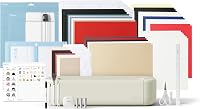
Its Essential Bundle includes Smart Vinyl, Smart Iron-On, Value Cardstock, Insert Card Sets and Printable Vinyl. That variety helps you try different crafts before buying larger amounts of one material.
For cards, think through both the cut shape and the fold. For vinyl labels, consider the final letter size and how easily you'll remove the unwanted material around the design.
Explore also suits a crafter who wants to repeat a familiar project. Before making multiples, finish one complete item so you can catch layout or application problems before using more supplies.
Skip Explore if engraving or debossing is central to your plans. Don't buy it on the assumption that a later accessory will add every process available on Maker.
Fabric deserves the same care. Our guide to what a Cricut can cut can help you sort material questions before committing to a machine.
Who should buy the Maker 5, and who should skip it?
Maker 5 suits crafters who move between different materials and processes, especially fabric work, engraving and debossing. Those capabilities give it a clear purpose beyond routine paper and vinyl projects.
The Essential Bundle includes the Premium Fine Point Cutting Tool, Scoring Tool and Engraving Tool. Other specialty tools are sold separately, so compare the tools required by your project with the tools actually included.
Choose Maker when you can describe what its extra capability will do. An engraved gift or fabric applique is a stronger buying reason than a vague plan to try more crafts someday.
Skip Maker if your foreseeable projects stop at cards, decals and iron-on designs. Its extra processes won't remove the need to learn design sizing, material preparation or careful assembly.
Is Maker the better choice for fabric and leather?
Maker is the clearer choice for fabric and leather in this comparison because both are specifically supported. Still, cutting fabric, cutting leather and debossing leather are separate jobs with different preparation needs.
Plan the full craft, including what happens after cutting. A fabric applique may need positioning and attachment, while a leather piece may need assembly or finishing.
Keep fabric flat and avoid stretching it while preparing the design area. Use our guide to whether a Cricut can cut fabric to work through material and setup questions.
What do the Essential bundles actually help you make?
Both Essential bundles provide a starting mix of tools and materials, rather than everything needed for every compatible craft. Cricut describes each as supplying up to 65 projects, based on average projects measuring 4 x 6 in.
That figure isn't a promise of 65 shirts, large signs or full sheets of stickers. Larger designs, wasted offcuts and repeat attempts change how far the supplies go.
Compare the bundle with your first project, not the total number of possible projects. A card-focused buyer gets more use from card supplies than someone who only wants to make fabric pieces.
Also separate machine compatibility from included accessories. A machine may support a process while the required tool, material or finishing supply needs a separate buy.
For apparel, plan how you'll apply the cut design. For decals, account for surface preparation and any transfer supplies needed by your chosen material.
Our guide to how much a Cricut machine costs helps you plan the complete setup, including materials, extra tools and optional digital content.
How should you set up either machine for your first project?
Start with one small project in one material, then complete every stage before moving to a batch. A simple shape or short label makes it easier to see where sizing, cutting or application needs adjustment.
Both machines require a compatible computer or mobile device with Bluetooth and high-speed internet. Check device compatibility before buying, especially if you plan to use an older device.
Give the machine a stable work surface and keep the material's travel path clear. Leave room to handle supplies without bending them against a wall or dropping them over the edge of the table.
Follow this order for a first project:
- Connect the machine and open Design Space.
- Choose a simple design and set its finished dimensions.
- Confirm the material, tool and any required mat.
- Follow the loading and preparation instructions for that combination.
- Cut one small piece before preparing the full design.
- Finish the project, including weeding, folding or application.
For iron-on work, follow the material's instructions for orientation and mirroring. Don't copy an adhesive-vinyl workflow and assume the same steps apply.
Keep your first design large enough to handle comfortably. Tiny lettering adds difficult weeding and placement work while you're still learning the basics.
Do you need Cricut Access to use Maker or Explore?
You can start with the free Design Space app; the full content library and certain software features require paid Cricut Access. Choose the machine for its physical capabilities, then decide whether the paid content fits your habits.
Explore's free library includes images, fonts and projects, along with step-by-step design flows and customizable templates. You don't need to plan an elaborate design from a blank canvas to begin.
Both bundles include bonus digital content. For Maker, that content goes to the first account that successfully registers the machine and is non-transferable, so use the account you intend to keep.
Before subscribing, find a design for your first project and check what access it requires. Then consider whether you want a steady supply of library designs or mainly plan to work from a small set.
Read whether you need Cricut Access for help separating software access from the machine decision.
Which machine should you choose for full-color stickers?
Either machine can suit full-color sticker projects, so stickers alone don't justify choosing Maker. Both bundles include Printable Vinyl, giving sticker makers a relevant starting material.
Explore cuts around images printed with a home inkjet printer. The printer provides the color, while the cutting machine shapes the printed design.
Plan the printing stage before choosing sticker artwork. Use material intended for your printer and follow the project instructions for page setup, printing and cutting.
Avoid changing the printed page's scale after preparing the cut layout. Keep the sheet clean and flat, and check that small text and fine outlines remain readable at the final size.
Sticker durability also depends on the printable material and any finishing steps you choose. Cutting a sticker doesn't by itself make it suitable for outdoor exposure or repeated washing.
Our Print Then Cut guide explains the workflow. If you're still choosing projects, browse what you can make with a Cricut before building a supply cart.
What mistakes should you avoid with Maker and Explore?
The most costly mistake is buying around a material count instead of a real project. A larger range only helps when you use a material or process that requires it.
Another mistake is treating cutting and engraving as interchangeable. Maker's ability to engrave acrylic doesn't establish that it can cut the same acrylic piece into shape.
Avoid these other common problems:
- Buying tools too early: identify a project and its required tool before adding accessories.
- Skipping material preparation: wrinkles, debris and poor placement can affect a cut.
- Starting with tiny details: fine shapes are harder to remove and transfer cleanly.
- Making a full batch immediately: complete one finished item before repeating it.
- Confusing working size with finished size: check the design against the object it will go on.
- Ignoring later steps: cutting is only part of making a card, shirt, decal or fabric piece.
For a gift or deadline project, allow time for assembly and application as well as design work. A cut design may still need careful placement, folding, pressing or finishing.
Keep notes on successful material and design combinations. Recording the tool, material name and useful preparation steps saves guesswork when you repeat a craft.
How do you care for the machine, tools and supplies?
Keep the work area clean and the tools properly stored, and follow Cricut's care instructions for the exact accessory. Good preparation helps prevent debris, damaged materials and avoidable handling problems.
Clear scraps from the work area after a session. Remove loose material only when the machine is stopped, and keep fingers away from cutting edges and moving parts.
For projects that use a mat, remove scraps gently and protect the adhesive surface between uses. Avoid harsh cleaners or improvised treatments unless the mat's care instructions allow them.
Store paper and printable sheets flat, away from moisture. Keep fabric free of folds in the area you plan to cut, and protect vinyl from dirt that could interfere with placement.
If cuts become ragged, check the material setting, tool installation and debris before changing several things at once. Stop and follow the relevant care guidance if a tool or material looks damaged.
How should you compare an earlier Maker with these bundles?
Compare the exact generation and included tools, rather than assuming every Maker package offers the same setup. The Maker 5 capabilities discussed here don't establish what an earlier machine supports.
Make a checklist with separate columns for machine functions, included tools and included materials. This prevents a large accessory bundle from distracting you from a missing capability your project requires.
Use the same checklist for a machine you already have. Identify the project it cannot complete before deciding that replacement is necessary.
For a different-generation comparison, read our Cricut Maker 4 vs Explore 5 comparison. Keep those model differences separate from this Maker 5 and Explore 5 decision.
Make your Cricut Maker vs Explore decision
Choose Explore 5 when your next projects are cards, labels, decals, stickers or iron-on apparel. Choose Maker 5 when a planned project depends on fabric support, engraving, debossing or its thicker-material capabilities.
Before ordering, write down the first project's material, required tool and finishing supplies. That short checklist gives you a practical way to judge the bundle and avoid accessories with no immediate purpose.
If neither choice fits your space or project plans, use our guide to how to choose a Cricut machine to compare the wider family.
Frequently asked questions
What is the main difference between Cricut Maker and Explore?
Maker 5 adds fabric support and specialty processes such as engraving and debossing. Explore 5 suits common paper, vinyl, iron-on and printable-material projects.
Choose by the material and action your project needs, rather than assuming a larger material range will improve every craft.
Is a Cricut Maker worth it over an Explore?
Maker 5 is worth choosing when a planned project needs its fabric support, engraving, debossing or thicker-material capabilities. Explore 5 is the more focused choice for cards, decals and iron-on designs.
Include any required specialty tools and supplies when comparing the complete setup.
Can Cricut Explore cut fabric?
Choose Maker 5 for fabric in this comparison because fabric is specifically included in its supported materials. Before planning fabric work on Explore 5, confirm the exact fabric, preparation and tool requirements.
Don't assume a machine can cut any fabric simply because it handles other flexible materials.
Do Cricut Maker and Explore both make stickers?
Yes, both machines support full-color sticker projects, and both Essential bundles include Printable Vinyl. Explore 5 cuts around designs printed with a home inkjet printer; the cutting machine doesn't supply the printed color.
Sticker projects alone aren't a reason to choose Maker's specialty capabilities.
Should beginners buy Cricut Maker or Explore?
Beginners should choose Explore 5 for common paper, vinyl and iron-on projects, or Maker 5 when their first projects need its specialty capabilities. Both require learning Design Space and preparing materials correctly.
A short project list is a better guide than choosing the machine with more features.