Cricut Maker 4 Review: Worth It? (October 2026)
The Cricut Maker 4 suits crafters who plan to make cards, shirts, stickers and specialty projects. Choose this bundle for its mixed materials sampler, or compare the alternatives if you want included engraving tools or a vinyl-focused start.
On this page (10 sections)
- The Cricut Maker 4 at a glance
- What can you make with the Cricut Maker 4?
- Who should buy the Maker 4, and who should skip it?
- Will the Cricut Maker 4 fit your workspace?
- Cricut Maker 4 vs Maker 5 Essential vs Maker 4 Starter Kit
- What do Design Space and Cricut Access add?
- How should you set up your first Maker 4 project?
- Which mistakes waste materials?
- How do you care for the machine, mats and tools?
- Which Cricut Maker 4 bundle should you choose?
The Cricut Maker 4 is a good fit for crafters who want to move between paper, vinyl, iron-on and specialty projects. This bundle gives you a mixed starting kit, with room to add tools as your skills and project plans grow.
Buy it because you have several uses in mind, such as cards now and personalized gifts later. If you only want shirt graphics, a focused bundle may suit you better; if engraving is an immediate goal, included specialty tools deserve more weight.
The Cricut Maker 4 at a glance
The Maker 4 combines broad material support with a mixed starter bundle, making it useful for exploring several crafts without choosing one supply type first. Cricut says it cuts up to twice as fast as the previous model.
Cricut Maker 4

- Works with 300+ materials
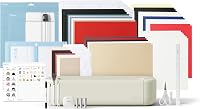
- Includes materials sampler and Light Grip Mat
- 30 bonus images
Choose this bundle to explore paper, vinyl and iron-on before buying larger material packs. Its wider tool support also leaves room for specialty projects as your plans grow.
Pros
- Supports cutting, drawing, foiling, scoring, engraving and debossing
- Includes a mixed materials sampler, mat, pen and weeder
- Print Then Cut works with most inkjet printers
Cons
- Some specialty tools are sold separately
- Full content library requires a paid Cricut Access subscription
What comes with this Cricut Maker 4 bundle?
You get a Fine-Point Blade, Fine Point Pen, Light Grip Mat and weeder. The materials sampler covers Smart Vinyl, matless vinyl, Smart Iron-On, matless heat transfer vinyl, cardstock and transfer tape.
The bundle also includes 30 bonus images in Design Space after machine registration. These give you designs to start with, but choose your first project around the supplies and tools you have.
The sampler is useful for learning which crafts you enjoy before buying larger packs. It doesn't equip the machine for every supported technique, so plan specialty tools around named projects rather than buying them all at once.
What can you make with the Cricut Maker 4?
The Maker 4 works with 300+ materials and supports cutting, drawing, foiling, scoring, engraving, debossing and perforating with compatible tools. Practical projects include cards, shirt decorations, decals, stickers and selected leather or wood crafts.
Think about the whole project, not just the cut. A decal needs excess vinyl removed and a way to transfer the design; an iron-on graphic needs a suitable blank and heat application.
For folded paper projects, scoring can help place fold lines, but it requires the right tool. Engraving and other specialty techniques also need their own tools and suitable materials.
Read our guide to what you can make with a Cricut machine for ideas you can turn into a short supply list. For sewing projects, check whether a Cricut can cut fabric before choosing fabric, tools and mat preparation.
A broad material range doesn't mean every thickness or finish within a material family will work. Confirm the exact material and tool pairing before cutting leather, wood or other unfamiliar stock.
Full-color stickers need a printer too
Print Then Cut uses an inkjet printer to produce the color design, then the machine cuts around it. The Maker 4 supports this feature with most inkjet printers; it doesn't replace the printer.
Plan for compatible printable material as well as the printer. Adhesive vinyl for cut shapes and printable sticker material serve different workflows, so don't assume one sheet can handle both.
Our guide to Print Then Cut on a Cricut machine explains the process before you commit to a sticker project.
Who should buy the Maker 4, and who should skip it?
Buy the Maker 4 if you expect to use several craft techniques, especially if you want to begin with ordinary paper or vinyl projects and add specialty work later. Skip it if those extra techniques have no place in your plans.
A beginner can choose it without needing a complex first project. A simple card or single-color decal teaches design sizing, material placement and unloading with fewer steps to manage.
The stronger reason to choose this machine is a realistic path beyond those basics. Write down 3 projects you want to finish in the next few months, then identify their materials and tools.
If all 3 use vinyl or iron-on, compare the machine families before paying for capabilities you may leave idle. Our Cricut Maker vs Explore comparison helps narrow that choice.
If you already have a cutting machine, focus on the specific task your current setup cannot handle. Another mixed sampler is less useful than a clear reason to change machines.
Will the Cricut Maker 4 fit your workspace?
The Maker 4 measures 7.1 in deep x 22.1 in wide x 6.2 in high, but your work area must also allow materials to move during cutting. Measure the working space, not just a shelf where the closed machine could sit.
Keep the feed path clear of walls, cables and loose supplies. A mat or longer material needs room to travel without catching on an edge or pressing against something behind the machine.
You also need a nearby surface for preparing sheets, removing scraps and assembling projects. Shirts and transfer work are easier to manage when the cutting area isn't buried under finished pieces.
If you must pack everything away after each session, plan storage for flat mats and unused sheets. Creased materials and bent mats create avoidable setup problems when you return to a project.
Cricut Maker 4 vs Maker 5 Essential vs Maker 4 Starter Kit
Choose between these bundles by the tools and materials your first projects require. The standard Maker 4 bundle favors variety, the Maker 5 Essential adds scoring and engraving tools, and the Maker 4 Starter Kit centers on vinyl and iron-on.
| Product | Starting focus | Choose it when |
|---|---|---|
| Cricut Maker 4 | Mixed paper, vinyl and iron-on projects | You want to explore several crafts |
| Cricut Maker 5 Essential | Included specialty tools and project supplies | Scored cards or engraving are near-term plans |
| Cricut Maker 4 Starter Kit | Decals and shirt decorations | You want a focused first workflow |
Maker 5 Essential: choose it for tools you'll use soon
The Maker 5 Essential includes a Premium Fine Point Cutting Tool, Scoring Tool and Engraving Tool, plus printable vinyl, insert card sets and other supplies. It also includes 25 bonus images and 1 font.
Cricut estimates enough supplies for up to 65 projects averaging 4 x 6 in. Larger designs, practice cuts and material waste will change how far that supply pack goes.
Cricut describes the Maker 5 as 30% more compact than previous models, with 12 in cutting performance. It works with 13 tools, though some specialty tools still need to be bought separately.
Choose it if the included scoring and engraving tools match work you want to begin soon. Skip it if they would sit unused while you make ordinary vinyl decals.
Maker 4 Starter Kit: choose it for decals and shirts
The Starter Kit includes adhesive vinyl and heat transfer vinyl sampler sheets, a cutting mat, blade, tools and beginner guidance. It gives a first-time crafter a narrower, clearer starting point.
Its 7.6 score reflects the bundle's focused supplies, not a different class of Maker 4 machine. The standard bundle scores 8.9 for its mixed starting kit, while the Maker 5 Essential scores 8.7 for its included tools and supplies.
Choose the Starter Kit if decals and shirt graphics are your immediate goals. Skip it if your first project needs a specialty tool, since those included vinyl sheets won't fill that gap.
For another machine comparison, read Cricut Maker 4 vs Explore 5. Our guide to the best Cricut machine covers the wider set of choices.
What do Design Space and Cricut Access add?
Design Space is the free app used to prepare projects, while Cricut Access is an optional subscription for a larger content library. You don't need to subscribe simply to use the Maker 4.
The free library includes 3,000+ images and 100+ fonts. That gives you a starting point for learning without making a subscription part of your first setup.
Before choosing a design, check whether its images and fonts are included in what you can use. A project that looks simple can still depend on content outside your current selection.
Start with a few designs you know you can use, then judge the paid library against your actual craft habits. Our guide to whether you need Cricut Access can help with that decision.
Review Cricut's Design Space information to check device requirements before buying. For the Maker 5, Cricut specifies a compatible Bluetooth computer or mobile device and high-speed internet.
How should you set up your first Maker 4 project?
Start with one simple design and one familiar material, then follow the setup instructions before loading anything. A single-color shape or short word keeps the first session focused on the cutting workflow.
- Prepare the space. Clear the material path and place your device where you can follow the app without reaching across the machine.
- Complete the guided setup. Register the machine, follow connection prompts and confirm that your included digital content is available.
- Match tool, mat and material. Use the instructions for the exact material rather than choosing a setting because its name sounds close.
- Check size and layout. Measure the blank or surface, then confirm the design fits within the usable material.
- Make a small practice cut. Use a spare corner or scrap to check cutting and removal before committing a full sheet.
For adhesive vinyl, begin with a design that has few small pieces to remove. Large, simple letters are easier to handle than thin script with tiny enclosed spaces.
For iron-on, follow the material's instructions for orientation, mirroring and heat application. Those steps differ from an ordinary adhesive decal, even when the design looks the same.
With Print Then Cut, follow the app's print and cut sequence and complete calibration if prompted. Keep the printed sheet positioned as directed so the machine can read it correctly.
Which mistakes waste materials?
The most avoidable mistakes come from wrong settings, wrong orientation and designs that are too detailed for the chosen size. Check those before blaming the material or changing several settings at once.
Don't shrink intricate lettering until its strokes become tiny. A design that looks clear on a screen can become hard to weed or lift cleanly when cut small.
Don't use a mat-free setup with arbitrary sheet material. Use material intended for that loading method and follow its required dimensions and loading directions.
Avoid assuming every material within a broad category behaves alike. Thickness, backing and surface finish can change which tool, mat or process you need.
For shirts, confirm placement before applying heat and follow the transfer material's time, temperature and peeling instructions. Cutting the design correctly is only one part of getting a usable result.
Save notes on the material and settings that worked for a project. Change one thing at a time when a cut needs adjustment, so you can tell what helped.
How do you care for the machine, mats and tools?
Keep the cutting path clear, mats protected and tools free of scraps. Small bits of paper or vinyl can interfere with material contact and make the next project harder to load cleanly.
Remove loose debris after a session using the care method recommended for the tool or mat. Follow the machine's instructions before reaching near blades or moving parts.
Replace mat covers after use and store mats flat. Keep unused sheets away from dust, and avoid bending them into cramped storage spaces.
When cuts become incomplete or materials lift, inspect the setup before replacing supplies. Check material adhesion, the selected tool, trapped scraps and settings, then follow Cricut's care guidance for the next step.
Which Cricut Maker 4 bundle should you choose?
Choose the Cricut Maker 4 mixed bundle if you want to explore several crafts and add specialty tools only as projects demand them. Pick the Maker 5 Essential when scoring and engraving are immediate goals, or the Maker 4 Starter Kit when decals and shirts come first.
Before ordering, make one complete supply list for your first project, including any blank, printer, heat source or specialty tool it needs. That list shows which bundle moves you closest to finishing something useful.
If your project list is still vague, read Is a Cricut machine worth it? before committing. A machine earns its place through the projects you return to, so choose for your next few crafts rather than every possible future hobby.
Frequently asked questions
What can the Cricut Maker 4 do?
The Cricut Maker 4 cuts 300+ materials and supports drawing, foiling, scoring, engraving, debossing and perforating with compatible tools. Projects can include cards, apparel decorations, stickers and selected leather or wood crafts.
Match the exact material to the correct tool and mat before starting; some specialty tools are sold separately.
Does the Cricut Maker 4 need Cricut Access?
No. You can use the free Design Space app without a Cricut Access subscription, and a free image and font library is available.
Access adds the full content library.
Start with the designs you need for your first projects, then decide whether the paid catalog would be useful.
Is the Cricut Maker 4 good for beginners?
Yes, if you want to learn several craft types and will start with simple projects. The mixed sampler gives you a way to try paper, vinyl and iron-on.
Choose one material first, practice its full workflow, and add specialty tools only when a specific project calls for them.
What is included with the Cricut Maker 4?
This bundle includes the machine, Fine-Point Blade, Fine Point Pen, Light Grip Mat, weeder and 30 bonus images in Design Space after registration. Its sampler includes Smart Vinyl, matless vinyl, Smart Iron-On, matless heat transfer vinyl, cardstock and transfer tape.
Specialty techniques can require extra tools and supplies.