Cricut Maker 4 vs Explore 5: Which Is Better? (October 2026)
In the Cricut Maker 4 vs Explore 5 choice, pick Maker 4 for specialty materials and tools or Explore 5 for everyday crafts. Choose your projects first, then the bundle supplies.
On this page (11 sections)
- Cricut Maker 4 vs Explore 5: which should you choose?
- What can each machine make?
- How do the material ranges compare?
- Do both machines make full-color stickers?
- What comes in each bundle?
- What should you check before setting up either machine?
- How much does Design Space affect the choice?
- Which tools and extra supplies should you plan for?
- What mistakes should new Cricut buyers avoid?
- How should you care for the machine and supplies?
- Cricut Maker 4 vs Explore 5: make the final choice
For Cricut Maker 4 vs Explore 5, choose Maker 4 when your projects need specialty materials or tools; choose Explore 5 for everyday paper, vinyl and iron-on crafts. The better buy is the machine that covers your next few projects without adding capabilities you'll leave unused.
Both can make cards, personalized shirts, decals and full-color stickers. Maker 4's advantage appears when you move beyond those shared crafts, while the Explore 5 bundles give you two starting supply options.


Cricut Maker 4 vs Explore 5: which should you choose?
Choose Maker 4 for a specific specialty project and Explore 5 for a routine built around common crafts. Write down what you want to make before comparing bundle sizes or digital extras.
A useful shortlist names the finished item, its material and the action it needs. “Leather tag with a recessed design” tells you more than “try new crafts,” because it gives you a material and a reason to consider debossing.
Explore 5 suits a household making birthday cards, shirt designs, storage labels and party decorations. Its range covers plenty of variety without requiring you to plan around Maker 4's additional actions.
Skip Maker 4 if you can't name a project that needs its extra range. Skip Explore 5 if your must-make project depends on a capability you haven't confirmed it supports.
The Cricut Maker vs Explore comparison explains the broader machine families. This comparison focuses on these models and the three bundles shown here.
The simplest Maker 4 vs Explore 5 buying rule
Buy for your next three finished projects, rather than a distant list of possibilities. Include one project you expect to repeat, since repeat work often matters more than a single experiment.
If all three use common paper or vinyl supplies, start with Explore 5. If one depends on a specialty action, confirm the complete tool and material combination before choosing Maker 4.
What can each machine make?
Both cover common personalized crafts, while Maker 4 adds more ways to work with specialty materials. Separate the finished project from the steps needed to make it.
For a shirt, the machine cuts a design from iron-on material; applying it is a separate step. A greeting card may need cutting, drawing or scoring, depending on the design.
Explore 5 can write, draw, foil and score as well as cut. Its snap-in pen holder helps with pen changes, but a design still needs the correct tool and settings for each action.
Maker 4 also supports engraving, debossing and perforation. Those actions serve different purposes, so choose one because the finished item needs it.
Engraving makes marks in a suitable surface, debossing presses a recessed design, and perforation creates a line intended to tear. None of those actions replaces checking whether your chosen material is compatible.
For fabric plans, use our guide to whether a Cricut can cut fabric to identify the questions to settle before buying. “Fabric project” is too broad to determine the machine, tool and preparation on its own.
How do the material ranges compare?
Maker 4 supports 300+ materials; Explore 5 supports 100+, but the exact material you intend to use matters more than the totals. Maker 4's named examples include leather and wood, while Explore 5 covers vinyl, iron-on, cardstock and printable materials.
Explore 5 works with six tools, including a separately sold Deep Cutting Tool for materials such as foam and rubber. That doesn't make every thick sheet suitable for cutting.
Check the material's exact type, thickness and construction against Cricut's guidance. Coated, backed or layered sheets can need different preparation from an uncoated sheet with a similar name.
Do this check before buying a large pack. A small compatible sample is a better starting point when you're learning how a material behaves.
Use the Cricut material cutting guide to narrow your plans by material. The Cricut Explore 5 review gives a closer look at the everyday projects that suit that machine.
Do both machines make full-color stickers?
Yes, both support Print Then Cut with an inkjet printer, so sticker making alone doesn't require Maker 4. Your printer puts the color on the sheet, and the cutting machine cuts around the printed designs.
Maker 4 is compatible with most inkjet printers for this feature. Explore 5 uses a home inkjet printer and recognizes the printed images for cutting.
Choose printable media that suits your printer and the intended use. A decorative planner sticker and a label exposed to moisture need different material choices, even if the artwork is identical.
Follow the print and cut instructions without changing scale between steps. Print a small sheet first, check alignment, then move to a larger batch.
Don't assume an entire sheet becomes usable sticker area. Allow for the layout and marks required by the workflow when planning material use.
Our Print Then Cut guide explains the process in more detail. For a purchase centered on stickers, compare the options in our Cricut machines for stickers guide.
What comes in each bundle?
Choose the bundle by the supplies you'll use, after choosing the machine. Explore 5 Essential and Deluxe have the same machine capabilities; Deluxe provides a larger starting supply allowance.
Essential includes Smart Vinyl, Smart Iron-On, Value Cardstock, Insert Card Sets and Printable Vinyl, plus tools. Cricut describes its supplies as enough for up to 65 projects, compared with up to 100 for Deluxe.
Both counts use an average project size of 4 x 6 inches. A large shirt graphic uses more material than a small label, and practice cuts also use supplies.
Both Explore bundles include 25 bonus images and 1 font. These extras can help you begin, but choose materials you want to work with before choosing a bundle for its digital content.
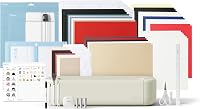
The Maker 4 bundle includes a Fine-Point Blade, Fine Point Pen, Light Grip Mat and weeder. Its sampler contains Smart Vinyl, matless vinyl, Smart Iron-On, matless heat transfer vinyl, cardstock and transfer tape.
It also includes 30 bonus Design Space images, available after machine registration. Don't assume this starter kit contains every tool needed for the machine's specialty actions.
Deluxe suits someone ready to try several kinds of everyday crafts soon. Essential is the more restrained choice if you're still discovering which craft you enjoy.
Skip a larger mixed bundle if you already know you'll use only one material. In that case, compare how much of the included assortment serves your actual plans.
| Product | Best for | Materials | Specialty actions | Bundle supplies | Our score |
|---|---|---|---|---|---|
| Cricut Explore 5 Essential | everyday crafters | 100+ materials | Writing, drawing, foiling and scoring | Up to 65 projects at an average 4 x 6 in | 9.2 |
| Cricut Maker 4 | specialty crafters | 300+ materials | Foiling, scoring, engraving, debossing and perforation | Materials sampler, mat, pen and weeder | 8.9 |
| Cricut Explore 5 Deluxe | frequent beginners | 100+ materials | Writing, drawing, foiling and scoring | Up to 100 projects at an average 4 x 6 in | 8.5 |
What should you check before setting up either machine?
Check your device, workspace and first project's supplies before opening materials. A machine bundle is a starting kit, so plan the rest of the workflow too.
Explore 5 requires a compatible computer or mobile device, Bluetooth and high-speed internet. Both machines use Design Space, so confirm current device requirements before committing to either one.
Explore 5 provides 12 in cutting performance, but that doesn't describe every project's usable design area. Likewise, Maker 4's closed dimensions of 7.1 in deep, 22.1 in wide and 6.2 in high aren't a complete workspace measurement.
Leave room for material to feed through the machine without hitting a wall or desk clutter. You also need a clear surface for preparing sheets, removing excess material and assembling finished pieces.
Keep a printer nearby if stickers are your main goal. For apparel, plan for the application equipment and garment preparation required by the iron-on material.
Follow Cricut's setup steps, register the machine and begin with one small design. Keep the first project simple enough that you can identify what went wrong if the result needs adjustment.
Avoid making a large batch your first task. One small card or decal lets you learn loading, cutting and removal before using more supplies.
How much does Design Space affect the choice?
Design Space is part of both workflows, so learning the software matters whichever machine you choose. Explore 5's simplified interface doesn't remove the need to prepare a design and select suitable materials.
The free content libraries include 3,000+ images and 100+ fonts. Explore 5's described free library also includes 1,000+ projects, and its design tools include guided flows and customizable templates.
Cricut Access is optional, with a larger content library available through a paid subscription. Certain Explore 5 software features also require it.
Start with free content that fits your first project. Check for any paid elements before spending time arranging a design you intend to make immediately.
Save a copy of a project once you've sized it correctly. Record the material and settings that worked so repeat jobs don't start from scratch.
For a wider view of machine types and the software-based workflow, see our complete Cricut and craft cutting machine guide.
Which tools and extra supplies should you plan for?
Plan extras around a complete finished item, rather than collecting accessories for every possible craft. The required tool is only one part of the setup.
For a vinyl decal, think through cutting, removing unwanted vinyl and transferring the design. For a card, consider the paper, any scoring or drawing tools, and the supplies needed to assemble it.
For specialty work, identify the required tool before choosing the blank material. Machine support for an action doesn't mean the included blade can perform it.
Keep material compatibility and accessory compatibility as separate checks. A tool can fit a machine while still being wrong for a particular sheet or technique.
Our guide to how much a Cricut machine costs covers the kinds of extras to include in a setup budget. A useful comparison includes the machine, your first project supplies and any required tools.
What mistakes should new Cricut buyers avoid?
Avoid changing several things at once when a cut goes wrong. Check the material choice, tool, loading and design size in order so you can find the cause.
Sending the wrong version of a design
Check the design's final dimensions and read the instructions for its intended use before cutting. Iron-on projects commonly require mirroring, so follow the material directions rather than copying the workflow used for an adhesive decal.
Make sure any writing or scoring elements are assigned to the intended action. Otherwise, a project can reach the machine with the wrong instructions.
Choosing detail that's too small
Tiny letters and thin shapes can be hard to remove cleanly from surrounding material. Simplify the design or enlarge it before blaming the machine.
Start with clear shapes and readable lettering. Add finer detail after you've learned the material's limits.
Assuming more pressure solves every problem
A poor cut can come from the wrong setting, a dirty blade area or material that isn't held securely. Check those causes before increasing pressure.
Follow the recommended settings and make a small trial cut when appropriate. Examine both the cut edge and the backing before continuing.
Counting on every scrap
Leave enough material for loading and holding the sheet correctly. A leftover piece is useful only if it meets the requirements of the next cut.
Store scraps by material type and label them while you still know what they are. Similar-looking sheets can need different settings or application methods.
How should you care for the machine and supplies?
Keep the feed path clear and store materials flat, then follow Cricut's care instructions for the machine and accessories. Good habits help prevent avoidable loading and adhesion problems.
Remove loose scraps after each project and keep drinks, glue and glitter away from the working area. Power off the machine before checking or handling cutting tools.
Inspect blades and tool housings for debris when results change. Use the recommended cleaning method and replace worn parts as directed, rather than improvising with sharp tools.
Protect mat surfaces during storage and keep them away from dust. Match the mat and removal method to the material so delicate paper doesn't curl or tear unnecessarily.
Return unused sheets to clean storage away from bending and heavy objects. Keep instructions with unfamiliar materials, especially when they include application or care requirements.
Cricut Maker 4 vs Explore 5: make the final choice
For Cricut Maker 4 vs Explore 5, choose the machine that completes your hardest planned project with the right tools. Then choose the smallest useful starting supply set.
Pick Maker 4 if specialty work is already on your project list and you've confirmed the required material and accessory. Its extra range earns its place when you can name what you'll make with it.
Pick Explore 5 Essential for a manageable start across common crafts. Choose Deluxe when you expect to use more of the mixed supplies soon, rather than storing most of them for later.
Before ordering, write one complete supply list for your first project. That final check is more useful than adding accessories without a plan.
If neither choice feels settled, use how to choose a Cricut machine to revisit your project needs. Our guide to the best Cricut machines for home crafters also compares options beyond these two models.
Sources
Frequently asked questions
Is the Cricut Maker 4 better than the Explore 5?
Maker 4 is better for projects that need its wider material range or specialty actions, including engraving and debossing. Explore 5 is the more focused choice for cards, decals, shirts and stickers.
Choose the machine that supports your planned work, then check the tools and supplies that work requires.
Can the Cricut Explore 5 cut wood or leather?
Choose Maker 4 if wood or leather is central to your plans, since both are named among its supported materials. For Explore 5, confirm the exact material and tool with Cricut before buying.
A material's thickness, backing and construction matter, so broad material names alone aren't enough.
Do both machines make stickers?
Yes, both machines support Print Then Cut for full-color stickers made with an inkjet printer. The printer supplies the color, and the cutting machine cuts the printed design.
Check your printer's media requirements and choose a suitable printable sheet before planning a large batch of matching stickers.
Which Explore 5 bundle should I choose?
Choose Essential for a smaller mixed starting supply bundle or Deluxe if you expect to use more of those materials soon. Their machine capabilities are the same.
Cricut's project totals assume an average design size, so large graphics, practice cuts and unused scraps will affect how far supplies go.
Do you need Cricut Access for either machine?
No, both machines work with free Design Space and include free content. Cricut Access is optional and adds a larger content library, while certain Explore 5 software features require it.
Start with a specific project and check its content and feature requirements before deciding whether to subscribe.