Cricut vs Die Cutting Machine: Which Is Better for Cards? (October 2026)
For Cricut vs die cut machine, choose Cricut for custom names, adjustable shapes and digital batches, or a manual machine for ready-made dies and folder embossing. Your usual card designs and preferred way of working should decide.
On this page (10 sections)
- Cricut vs die cut machine: what is the actual difference?
- Which gives you more freedom to personalize cards?
- Which machine suits your card sizes and paper?
- Which is better for embossing, scoring and layered details?
- Which works better for batches of invitations or thank-you cards?
- How should you set up your first card project?
- What supplies should you budget for beyond the machine?
- How do you care for the machine and avoid wasted cardstock?
- Which of these 3 machines should you buy or skip?
- Cricut vs die cut machine: which should you choose for cards?
Choose Cricut for custom digital designs and a manual die cutting machine for physical dies and folder embossing. The Cricut vs die cut machine decision comes down to how you want to create your cards, not just which machine can cut paper.
Names that change, shapes you resize and matching invitation sets favor a digital cutter. Familiar flowers, decorative labels and embossed backgrounds favor a manual setup with dies and folders ready beside you.


Cricut vs die cut machine: what is the actual difference?
A Cricut follows a digital cutting path, while a manual die cutting machine presses paper against a physical cutting die. Both can make card pieces, but they get their designs from different places.
With a digital cutter, you arrange a design on a screen before sending it to the machine. You can change the layout without buying a new physical tool for every shape.
A manual machine uses rollers and a handle to move a stack of pads, paper and a die through its opening. An embossing folder replaces the cutting die when you want a pressed pattern rather than a cutout.
“Die cutting machine” is also used broadly for craft cutters, including digital models. Here, the comparison is specifically between the Cricut Explore 5 Essential and the manual Sizzix Big Shot and Sidekick.
How does Cricut vs manual die cutting change your routine?
Cricut puts more work into preparing the file; manual die cutting puts more focus on choosing and arranging physical tools. That difference matters each time you sit down to make a card.
If screen work feels like part of the fun, digital design offers room to experiment. If you want to pick a die, cut a shape and start gluing, a manual routine is a closer fit.
Our complete guide to Cricut machines explains where digital cutters fit among other home crafting tools.
Which gives you more freedom to personalize cards?
Choose Cricut for names, resized shapes and changing layouts. Choose manual dies when you want to reuse a particular shape at its fixed size.
The Explore 5 uses Design Space, which includes templates and step-by-step design flows. You can build a card around text and shapes, then arrange the pieces to fit your chosen card base.
That helps when each birthday card needs a different name or each place card needs different lettering. It also lets you adjust a design after seeing how the pieces fit together.
Manual dies suit a different kind of creativity: combining fixed shapes, colors, layers and textures. A familiar flower die can look different with a new paper choice or placement.
The limit is the die's outline and size. You cannot make that flower wider in software; you need another compatible die or a different design approach.
For occasional cards with handwritten messages, digital personalization may add little value. Buy around the details you actually want to make, rather than every project you might try someday.
Which machine suits your card sizes and paper?
Measure your largest die, folder or planned cut before choosing. The Explore 5 is a 12 in cutting machine, the Big Shot has a 6 in opening, and the Sidekick has a 2.5 in opening.
Those measurements describe different working systems. A manual machine's opening must accommodate the required tool and paper stack, while digital projects must fit the supported cutting setup.
A small die can produce an accent for a much larger card. You do not need to feed the whole card base through a machine just to add a small cutout.
An embossed background is different because the paper and folder must fit together through the opening. Work backward from the panel you want to texture before buying the folder.
The Sidekick cuts one sheet of lightweight cardstock or paper at a time. Skip it if your plan depends on wide panels, thicker stock or cutting a stack of sheets in one pass.
For either workflow, choose paper with the finished card in mind. A delicate cut shape needs enough strength to lift and glue without tearing, while bulky layers can make a card harder to fold and mail.
Which is better for embossing, scoring and layered details?
Choose a manual machine for folder embossing and the Explore 5 for digital cuts combined with writing, drawing, foiling or scoring. These techniques solve different cardmaking jobs.
Scoring creates a fold line. Embossing presses a pattern into paper, while foiling adds a decorative finish; one action does not replace the others.
The Explore 5 supports 6 tools, with some compatible tools sold separately. Check the tool needed for your chosen action before planning a card that depends on it.
Both Sizzix machines support die cutting and embossing with compatible supplies. The Sidekick accepts Sizzix Thinlits, Framelits and embossing folders within its supported width.
For layered cards, start with the detail you cannot replace easily. A custom family name favors digital cutting, while a textured background made with a favorite folder favors a manual machine.
You may eventually use both workflows, but start with the one your usual cards need. Our Cricut picks for card making and scrapbooking help narrow the digital options if personalization leads your projects.
Which works better for batches of invitations or thank-you cards?
Cricut suits batches with a reusable digital layout; manual dies suit batches built around the same fixed shapes. Neither removes the work of folding, gluing and assembling each card.
The Explore 5 can make designs in multiples. Arrange repeated pieces in your layout, check their size, and keep different paper colors organized as you cut.
Before making a full batch, assemble 1 complete card. This catches a greeting that is too large, a layer that hides another detail or a fold that leaves too little room inside.
For manual batches, group the work by step: cut all the labels, emboss the panels, then assemble. Keep a sample beside you so the layers stay in the intended order.
Do not assume the most detailed design is the best batch design. Tiny letters and many separate pieces can create far more assembly work than the cutting stage suggests.
A simpler card with fewer layers is often the better choice for a large set. Save the more delicate design for a card where you want to spend extra time.
How should you set up your first card project?
Start with a simple card and complete every step once before adding detail. Learning the whole process is more useful than cutting a pile of pieces you have not fitted together.
Set up the Cricut before planning a complex layout
The Explore 5 requires a compatible computer or mobile device, Bluetooth and high-speed internet. Allow space for the device, the machine and material movement, rather than measuring only the machine's body.
In Design Space, set the finished dimensions first and check each element's intended action. Text meant to be drawn should not accidentally become a collection of cutout letters.
Use compatible material supports and tools as directed in the machine instructions. Make a small trial cut on scrap material before committing your preferred cardstock to an intricate design.
For full-color printed pieces, the Explore 5 cuts around images printed with a home inkjet printer. The cutter does not replace the printer, so include that separate step in your plans.
Build the correct stack for a manual machine
Follow the pad and platform arrangement specified for your exact die or folder. Different tools can need different stacks, even when they fit the same machine opening.
Place the machine on a stable surface with room for the pads to travel through. For the Sidekick, use a smooth surface that lets its vacuum seal hold.
Feed the stack straight and stop if it jams or needs unusual force. Check the arrangement rather than adding extra layers to push an unsuitable stack through.
What supplies should you budget for beyond the machine?
Compare the supplies for your first 3 projects, not just the machine package. A bundle helps only when its contents match the cards you want to make.
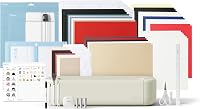
The Explore 5 Essential Bundle includes Value Cardstock, Insert Card Sets, Printable Vinyl, Smart Vinyl and Smart Iron-On, along with tools and digital content. Some of that range serves projects beyond cardmaking.
Its free Design Space content gives you a starting library, while the full library and certain features require paid Cricut Access. Our guide to whether you need Cricut Access explains that choice.
The Big Shot machine-only package includes its Multipurpose Platform and Cutting Pads, but no dies. Plan for at least one compatible die or embossing folder that serves your first project.
The Sidekick Starter Kit includes 6 Framelits dies, 2 Thinlits dies, 2 small embossing folders and 7 stamps. Those give you starting designs, but their usefulness depends on the cards you want to make.
For manual machines, a growing die collection also needs storage. For digital cutting, account for materials, compatible tools and any content you choose to buy.
Our guide to Cricut machine costs and extra supplies can help you plan the wider setup.
How do you care for the machine and avoid wasted cardstock?
Keep cutting surfaces clear, use the correct setup and inspect supplies before each project. Paper scraps, worn supports and a wrong material choice can spoil a design before assembly begins.
For a digital cutter, remove loose paper debris from the work area and maintain mats and blades according to the instructions. Check material settings and how securely the sheet is held before assuming a poor cut needs more pressure.
For manual cutting, remove paper scraps from dies carefully and keep fingers away from cutting edges. Inspect pads for wear and follow the brand's guidance on rotation or replacement.
Store dies so you can find matching pieces without rummaging through loose cutting edges. Keep pads and folders away from heat and store them as directed.
Avoid these common cardmaking mistakes:
- Choosing the machine before the project. Sketch your next few cards, including their largest cuts and embossed panels.
- Confusing size with compatibility. A die fitting through an opening does not by itself confirm the correct platform arrangement.
- Making a full batch too soon. Assemble one finished card before repeating the design.
- Using very thin details everywhere. Leave enough paper around letters and narrow connections to handle and glue them.
- Ignoring storage and working room. Include pads, materials, dies and space for finished pieces.
Which of these 3 machines should you buy or skip?
Choose the Explore 5 for personal designs, the Big Shot for regular manual cardmaking, or the Sidekick for small portable projects. The strongest choice is the one that handles your usual work without an unwanted extra process.
Cricut Explore 5 Essential: buy for changing names and layouts
Buy this machine if you want personalized greetings, adjustable shapes and digital files you can reuse. It also suits a crafter who wants to move between cards and other projects using its support for 100+ popular materials.
Skip it if you want cardmaking to be a screen-free activity or mainly want folder embossing. Its wider range of actions is useful only if you intend to use them.
Sizzix Big Shot: buy for a regular die-and-folder routine
Buy the Big Shot if you enjoy choosing physical dies and adding embossed texture to cards. It is the better manual choice here when the Sidekick's narrow format would rule out your planned tools.
Skip it if changing names and resizing the same shape are central to your work. Also plan your first dies before ordering, since this package is the machine-only option.
Sizzix Sidekick: buy for small accents away from home
Buy the Sidekick for small tags, labels and decorative paper pieces you want to make at a meetup or temporary craft table. Its starter supplies make sense if their shapes suit your projects.
Skip it as your only machine if you want wide embossed backgrounds or larger dies. Small embellishments can finish a large card, but the machine cannot accept a wider tool.
If your interests extend beyond cards, see what you can make with a Cricut machine. If digital cutting is already your choice, our Cricut machine comparison helps you consider other Cricut options.
Cricut vs die cut machine: which should you choose for cards?
Pick the machine around your next 3 card projects. In the Cricut vs die cut machine decision, changing text and shapes points to the Explore 5, while reusable dies and embossed texture point to a Sizzix.
Choose the Big Shot when your manual projects need room for larger compatible tools. Choose the Sidekick when small paper accents and easy packing define the job.
Before ordering, write down the tools, paper and design dimensions each project needs. That short list will show whether the machine fits your plans or whether you are buying features you will rarely use.
If you have settled on a digital workflow, compare Cricut vs Silhouette before choosing your system.
Frequently asked questions
Is a Cricut better than a die cutting machine for cards?
A Cricut is better for custom names, adjustable shapes and reusable digital layouts. A manual die cutting machine is better for cards built around physical dies and embossed textures.
Choose the workflow you'll enjoy repeating, then check that the machine accepts the materials and design sizes you need.
Can a Cricut cut cardstock for cards?
Yes, the Cricut Explore 5 Essential cuts cardstock and supports writing, drawing, foiling and scoring. Choose the correct material setting and compatible tool for each action.
Start with a simple shape on scrap cardstock, and check the result before cutting all the pieces for a finished card.
Can manual die cutting machines emboss cards?
Yes, the Sizzix Big Shot and Sidekick emboss paper with compatible folders. A folder presses a pattern into the paper, while a cutting die cuts a shape.
Check both folder compatibility and width before buying, and use the platform and pad arrangement required for that folder.
Which machine is easier to take to a craft meet-up?
The Sizzix Sidekick is the best fit here for craft meetups focused on small paper details. Its vacuum seal needs a smooth work surface, so check the table you'll use.
Pack compatible dies, pads, folders and paper together, and prepare larger card bases before leaving home.
Do you need an internet connection to use the Cricut Explore 5?
Yes, the Cricut Explore 5 requires high-speed internet, a compatible computer or mobile device, and Bluetooth. Design Space includes free images, fonts and projects.
A paid Cricut Access subscription is needed for the full content library and certain software features, rather than every project you make.