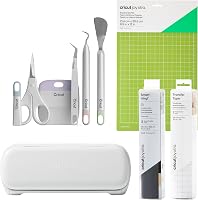
4 Best Cricut for Scrapbooking and Card Making (October 2026)
The best Cricut machines for scrapbooking and card making include the Cricut Explore 5 Essential for mixed scrapbook pages, the Cricut Maker 4 Card Making Kit for mixed material crafters, and the Cricut Joy 2 Ultimate Bundle for portable craft sessions.
On this page (11 sections)
- Which Cricut machines work best for scrapbooking and cards?
- How we chose these Cricut scrapbook machines
- How do these Cricut machines compare for paper crafts?
- Best Cricut for scrapbooking and card making
- How should you choose the best Cricut for scrapbooking?
- What do you need to set up a Cricut for scrapbook projects?
- How can you make scrapbook titles and layers easier to assemble?
- How do printed stickers fit into scrapbook making?
- How should you care for mats, tools and paper supplies?
- Which mistakes waste the most scrapbook paper?
- Which Cricut should you choose for scrapbooking?
The best Cricut for scrapbooking for most crafters is the Cricut Explore 5 Essential. It gives you room for larger page elements and includes paper supplies for moving between scrapbook layouts and greeting cards.
Choose Maker 4 if your plans include materials beyond paper, or a Joy model if small decorations and easy storage take priority. Your largest planned cut matters more than the size of the album it will go into.
For a broader overview of the machines, start with our complete Cricut guide. If you're deciding between the Explore and Maker families, see Cricut Maker vs Explore.
Our picks at a glance
-
1

-
2

-
3

- 4
 Check it
Cricut Joy Xtra Card Making Bundle
Best for card-first beginners
Which Cricut machines work best for scrapbooking and cards?
The Explore 5 fits the widest mix of scrapbook needs here, while the other picks suit more specific routines. Maker 4 favors mixed-material crafters, Joy 2 favors portable sessions, and the Joy Xtra bundle centers on card supplies.
A machine doesn't need to cut an entire scrapbook page to be useful. Separate letters, photo corners, date labels and small layered shapes can all come from a compact cutter.
The reason to choose a larger machine is freedom to make wider pieces in one cut. That becomes useful for connected titles, large frames and borders you don't want to join by hand.
Cricut Explore 5 Essential
- 12 in cutting width
- Works with 100+ materials
- Writes, draws, foils, scores and cuts
- Includes cardstock and insert cards
The strongest fit for scrapbookers who need larger titles, layered shapes and card projects from one machine. Its bundle includes paper supplies alongside materials for other crafts.
Pros
- Room for wider single-piece page elements
- Cardstock and insert cards included
- Supports paper crafts and other materials
Cons
- Deep Cutting Tool is sold separately
- Requires a compatible device and high-speed internet
Cricut Maker 4 Card Making Kit
- Cuts 300+ materials
- Works with 13 compatible tools
- Includes Card Mat 2x2 and card-making supplies
- Can cut, write, score, foil, engrave and emboss
Choose this kit when cards share your craft time with fabric, wood veneer or leather projects. The broader tool range matters most if you have specific plans beyond paper.
Pros
- Supports a broad mix of craft materials
- Card Mat 2x2 included
- Offers engraving and embossing functions
Cons
- Select tools are sold separately
- Extra capabilities may go unused for paper-only projects
Cricut Joy 2 Ultimate Bundle
- 4.5 in cutting width
- Works with 75+ materials
- Includes cardstock and insert card sets
- Weighs just over 2 lb
A small machine for scrapbook captions, separate letters, labels and everyday cards. It suits crafters who pack their supplies away between sessions.
Pros
- Easy to move at just over 2 lb
- Includes cardstock and insert card sets
- Supports small printed sticker projects
Cons
- Narrow cutting width limits single-piece designs
- Heat transfer supplies add little for paper-only crafters
Cricut Joy Xtra Card Making Bundle
- Includes card mat and insert cards
- Includes pens and paper crafting supplies
- Supports cutting and writing
- Compact, portable machine
A focused starting point for greeting cards, invitations and written paper details. Choose it for the card supplies you'll use, rather than for unrelated craft extras.
Pros
- Card mat and insert cards included
- Pens support personalized paper projects
- Bundle centers on paper crafting
Cons
- Less suited to buyers seeking a mixed-material kit
- Needs clear space for materials beyond its footprint
How we chose these Cricut scrapbook machines
We compared project fit, cutting functions and useful bundle contents, with paper crafts taking priority over the longest feature list. A broad material range helps only if you expect to use those materials.
For this roundup, usable design size carries more weight than unrelated extras. Card supplies also matter, but a pack of materials shouldn't decide your machine choice if its working size doesn't fit your layouts.
Our scores reflect that balance. Explore 5 leads because it serves mixed scrapbook and card projects, while Maker 4's extra capabilities matter more to crafters with plans beyond paper.
How do these Cricut machines compare for paper crafts?
Compare the shapes you want to cut and the supplies you'll actually use before choosing a bundle. Machine dimensions, material dimensions and usable design space describe different things.
| Product | Best for | Cutting width | Materials | Bundle | Our score |
|---|---|---|---|---|---|
| Cricut Explore 5 Essential | mixed scrapbook pages | 12 in | 100+ popular materials | Smart Vinyl, Smart Iron-On, Value Cardstock, Insert Card Sets and Printable Vinyl | 9.2 |
| Cricut Maker 4 Card Making Kit | mixed material crafters | 300+ materials | Card Mat 2x2, card-making supplies, vinyl, iron-on, Infusible Ink, tools and mats | 8.1 | |
| Cricut Joy 2 Ultimate Bundle | portable craft sessions | 4.5 in | 75+ materials | Smart Vinyl, Smart Iron-On, Value Cardstock, Insert Card Sets, Printable Vinyl and EasyPress Mini LT | 7.8 |
| Cricut Joy Xtra Card Making Bundle | card-first beginners | Card mat, insert cards, pen set, printable sticker paper, tools and paper craft supplies | 7.6 |
Don't treat a machine's outer width as its cutting width. For printed projects, leave room for the marks and margins the software requires rather than planning artwork to fill the entire sheet.
Also separate a supported function from an included tool. A machine may support scoring or foiling without having every accessory needed for that work in the box.
Best Cricut for scrapbooking and card making
The Cricut Explore 5 Essential is our first choice for mixed paper projects. Pick another model when portability, card supplies or a specific non-paper craft clearly matters more.
Cricut Explore 5 Essential
- 12 in cutting width
- Works with 100+ materials
- Writes, draws, foils, scores and cuts
- Includes cardstock and insert cards
The strongest fit for scrapbookers who need larger titles, layered shapes and card projects from one machine. Its bundle includes paper supplies alongside materials for other crafts.
Pros
- Room for wider single-piece page elements
- Cardstock and insert cards included
- Supports paper crafts and other materials
Cons
- Deep Cutting Tool is sold separately
- Requires a compatible device and high-speed internet
The Cricut Explore 5 Essential suits scrapbookers who want connected page titles, layered shapes and card fronts from the same machine. Its 12 in cutting width offers room for broader elements, and it works with 100+ popular materials.
Writing, drawing, foiling and scoring expand your paper options, with compatible tools and accessories needed for each task. The included cardstock and insert cards give you a paper-focused starting point among the bundle's other craft materials.
This is the sensible choice if your layouts change from album to album. You can plan a wide heading for one spread and small labels for the next without choosing a machine around only the smallest pieces.
Skip it if you mainly cut short captions and need to carry the machine between rooms. For a first machine, our best Cricut machines for beginners guide helps you compare the learning and project choices.
Cricut Maker 4 Card Making Kit
- Cuts 300+ materials
- Works with 13 compatible tools
- Includes Card Mat 2x2 and card-making supplies
- Can cut, write, score, foil, engrave and emboss
Choose this kit when cards share your craft time with fabric, wood veneer or leather projects. The broader tool range matters most if you have specific plans beyond paper.
Pros
- Supports a broad mix of craft materials
- Card Mat 2x2 included
- Offers engraving and embossing functions
Cons
- Select tools are sold separately
- Extra capabilities may go unused for paper-only projects
The Cricut Maker 4 Card Making Kit suits scrapbookers whose craft plans extend to fabric, wood veneer or leather. It cuts 300+ materials and works with 13 compatible tools, including options for engraving and embossing.
Its bundle includes a Card Mat 2x2, card-making supplies, tools and mats, alongside materials for other projects. That combination fits someone who makes invitations for an event and wants to create other decorations or gifts too.
Choose it because you can name those next projects. The broader tool system is useful when it solves a real task, rather than serving as a reason to buy more machine than your albums need.
Skip it if your plans stop at cardstock titles, paper frames and simple cards. Select tools are sold separately, so match each specialty project to its required tool and material before building a supply collection.
Cricut Joy 2 Ultimate Bundle
- 4.5 in cutting width
- Works with 75+ materials
- Includes cardstock and insert card sets
- Weighs just over 2 lb
A small machine for scrapbook captions, separate letters, labels and everyday cards. It suits crafters who pack their supplies away between sessions.
Pros
- Easy to move at just over 2 lb
- Includes cardstock and insert card sets
- Supports small printed sticker projects
Cons
- Narrow cutting width limits single-piece designs
- Heat transfer supplies add little for paper-only crafters
The Cricut Joy 2 Ultimate Bundle suits small scrapbook details and craft sessions away from a permanent desk. Its 4.5 in cutting width works for separate letters, date tabs and narrow decorations rather than broad, single-piece page designs.
It supports 75+ materials and weighs just over 2 lb. The bundle adds paper supplies, printable vinyl and a Cricut EasyPress Mini LT for heat transfer projects.
Choose it if you like assembling a page from separate pieces and want a machine that's easy to put away. Small elements can still build a large layout, provided you're happy to position and glue them individually.
Skip it if you often design long connected words or large frames. Splitting every wide design into sections adds alignment work, and the heat transfer extras offer little value if you only want to craft with paper.
Cricut Joy Xtra Card Making Bundle
- Includes card mat and insert cards
- Includes pens and paper crafting supplies
- Supports cutting and writing
- Compact, portable machine
A focused starting point for greeting cards, invitations and written paper details. Choose it for the card supplies you'll use, rather than for unrelated craft extras.
Pros
- Card mat and insert cards included
- Pens support personalized paper projects
- Bundle centers on paper crafting
Cons
- Less suited to buyers seeking a mixed-material kit
- Needs clear space for materials beyond its footprint
The Cricut Joy Xtra Card Making Bundle suits buyers who want their first projects to be greeting cards, invitations and written paper details. Its card mat, insert cards and pens make the bundle's purpose clear.
Printable sticker paper, tools and other paper craft supplies round out the set. Cutting and writing functions support layered decorations and personalized messages that can also become scrapbook accents.
Choose it if you want to repeat a card design with different names, dates or colors. The bundle keeps your early supply choices close to that goal instead of spreading them across unrelated crafts.
Skip it if you want specialty materials to drive your next projects. Before planning a large frame or page overlay, confirm the usable size for the exact material and mat combination rather than relying on the machine's compact appearance.
How should you choose the best Cricut for scrapbooking?
Choose around your largest single-piece design, usual materials and storage routine. Those 3 decisions tell you more than a long list of possible projects.
Match the best scrapbooking Cricut to your largest cut
Measure a title, frame or border you would genuinely make. A large album can use small decorations, while a small album might still need a broad connected heading.
Sketch that element at its finished size before comparing machines. If it won't fit, decide whether you would accept separate letters or joined sections every time you use that design.
Don't assume a stated cutting width guarantees the same width for every workflow. Mats, material choice and printed artwork can change the usable area, so leave room when planning close-fitting pieces.
Our guide to choosing a Cricut machine explains how Joy, Explore and Maker fit different project plans.
Decide how often you'll make cards
Choose a card-focused bundle when cards will be a regular project. Included card mats, pens and insert cards can be more useful than materials intended for crafts you don't plan to try.
Distinguish insert cards from ordinary folded cardstock cards. Each project needs a compatible design and loading method, and a card mat isn't a general replacement for every other mat.
If you mainly repeat the same few shapes, compare the digital workflow with a manual option. Our Cricut vs die cutting machine guide explains which approach suits different card-making habits.
Choose specialty materials for a real project
Pick Maker 4 when you already have a reason to work beyond paper. More supported materials don't improve a basic cardstock title on their own.
Material families also contain many variations. Fabric type, thickness, backing and the required tool can change what's suitable, so start with our guide to whether a Cricut can cut fabric before planning fabric accents.
For albums, consider the finished page as well as the cut. Thick decorations can strain page protectors or press against the opposite page, so keep bulky elements away from photos and binding edges.
Count usable supplies rather than bundle size
Judge a bundle by your first few projects, not the number of pieces in the box. A large assortment has limited value if most of it stays unused.
Write down what you'll need for one layout and one card: suitable paper, a compatible mat, adhesive and any writing or scoring tool. Then compare that list with what's included.
Treat claimed project quantities as examples rather than a personal supply forecast. Large frames, repeated layers and full card fronts consume materials differently from small labels.
What do you need to set up a Cricut for scrapbook projects?
Start with a compatible device, clear working space and one simple paper design. Complete the basic setup before sorting a whole album's worth of cuts.
Check your device and connection first
Explore 5 and Joy 2 use Design Space on compatible mobile or desktop devices through Bluetooth, with high-speed internet required. Joy Xtra also requires a compatible computer or mobile device with Bluetooth and high-speed internet.
Check Cricut's device requirements before choosing your setup. Use the screen you can comfortably manage for resizing, arranging layers and reading project prompts.
A larger screen can make a crowded page design easier to inspect. A mobile device can suit a simpler workflow, but comfort with the design steps matters more than choosing the smallest setup.
Leave room for the material to move
Place the machine on a firm surface and allow clear space along the material's travel path. A machine may fit on a shelf even when a loaded mat won't move freely there.
Keep loose paper, adhesive bottles and power cords out of that path. Check the arrangement before starting, especially if you're working at a shared dining table.
Make the first cut simple
Begin with a large basic shape in ordinary compatible cardstock. Use a small sample cut to confirm the material setting before moving to thin letters or detailed lace patterns.
Follow the software prompts for the tool and mat you're using. Complete one project from design to assembly before preparing a batch, so you can spot a size or layering mistake early.
For your next project, change one thing at a time. A different paper, smaller design and more detailed shape all at once make it harder to identify the source of a poor cut.
How can you make scrapbook titles and layers easier to assemble?
Design for clear shapes, manageable pieces and a planned assembly order. A cut file that looks attractive on a screen can become awkward when its smallest parts are loose on the table.
Keep fine details large enough to handle
Use thicker letter strokes and simpler shapes for small captions. Very thin paper bridges and tiny enclosed pieces can tear during removal or disappear under adhesive.
For a layered title, group each color in your plan and keep a reference image nearby. Lay out all the pieces before gluing so you can check spacing against the photos.
Arrange separate letters with a ruler or temporary guide. Start from a clear reference point, such as a photo edge, instead of placing each letter by eye.
Plan layers before cutting
Decide which shapes need a full backing and which can use a smaller accent. Unnecessary full-size layers use more paper and can make a page harder to close.
Dry-fit the largest pieces first, then add smaller details. Check that journaling remains readable and that decorations don't cover a face, date or other important part of a photo.
Use photo-safe paper and adhesive for anything touching photographs. A cutting machine shapes your materials, but it doesn't make ordinary paper or glue suitable for long-term photo storage.
Keep a reusable page template
Save a basic layout with placeholders for photos, titles and journaling. Reusing the structure keeps a themed album consistent without forcing every page to look identical.
Name files by album and purpose so you can find them later. Keep the finished dimensions in the file notes or name, especially if you'll reuse the same design in different album sizes.
How do printed stickers fit into scrapbook making?
Printed stickers are useful when you want full-color artwork without assembling many paper layers. Explore 5, Maker 4 and Joy 2 support printed sticker workflows; Explore 5 and Joy 2 use a home inkjet printer.
The printer adds the color, and the cutting machine cuts the shapes. Don't choose a cutter expecting it to print artwork by itself.
Plan the printed sheet as its own project rather than filling it edge to edge. Follow the software's size and placement instructions so the machine can recognize the printed marks.
Try one sheet before preparing a batch, especially when changing paper. Confirm the print appearance, cut alignment and adhesive suitability before placing stickers next to irreplaceable photos.
Our Cricut Design Space and Print Then Cut guide explains the workflow. Keep small captions readable at their finished size instead of shrinking a detailed illustration until its text disappears.
How should you care for mats, tools and paper supplies?
Keep mats covered, tools free of loose debris and paper stored flat. A few habits help prevent paper movement and reduce damage during removal.
Protect the mat between projects
Replace the protective cover after removing paper scraps. Store mats flat and away from dust, pet hair and loose fibers that can collect on the adhesive surface.
Match the mat to the material and follow its care instructions. Avoid improvised solvents or aggressive scraping that could damage the surface.
A mat with poor hold can let paper shift, while excessive grip can make delicate paper harder to remove. Solve that match before assuming the design or machine is at fault.
Remove paper slowly
For ordinary flat cardstock cuts, keep the paper supported and gently flex the mat away where practical. Pulling a delicate shape upward can curl it or snap narrow sections.
Remove small scraps before loading the next sheet. For card mats or other specialty setups, follow the specific unloading steps rather than using the same method for every project.
Check the tool when cuts become ragged
Pause the project and follow Cricut's instructions for inspecting or clearing the cutting tool. Turn off and unplug the machine before handling a tool as directed, and keep fingers away from its edge.
Loose fibers, shifting material and an unsuitable setting can all spoil a cut. Check those causes before increasing cutting force, which can damage paper or mark the mat more deeply.
Which mistakes waste the most scrapbook paper?
The biggest avoidable losses come from wrong dimensions, overly detailed designs and cutting a batch before checking one piece. Most are easier to catch on the screen or with a small sample.
- Sizing by the album cover: Measure the actual space on the page, including room for photos, journaling and page protectors.
- Using the wrong operation: Check that each element is set to cut, write or score as intended before sending the project.
- Mixing up front and back: Check the orientation of patterned or coated paper so the visible side ends up where you want it.
- Batching an unproven design: Assemble one complete card or layered decoration before cutting the rest.
- Gluing too soon: Arrange every piece first, including the photo, so a title doesn't crowd the page.
- Ignoring paper direction: Keep patterns and text facing the intended way when arranging pieces to reduce waste.
Save useful offcuts by size or color, but keep only pieces you can load and secure correctly. A tiny scrap isn't worth using if it can't stay flat through the cut.
Which Cricut should you choose for scrapbooking?
Choose the best Cricut for scrapbooking by the project you make most often, then check that it can handle your largest planned element. Let that decision lead, and use the bundle contents to refine it.
Pick Explore 5 Essential for connected titles, larger paper shapes and a mix of scrapbook layouts and cards. Choose Maker 4 Card Making Kit when specific fabric, wood veneer or leather projects justify its broader capabilities.
Choose Joy 2 Ultimate Bundle if you value carrying and storing the machine and mostly make separate small pieces. Pick Joy Xtra Card Making Bundle when cards, invitations and written paper details are your main reason to buy.
Before ordering, sketch one real layout and list the tools and materials it needs. If the card-focused route fits your plans, our Cricut Joy Xtra review is the next useful read.
Our top 3 picks at a glance
-
1
-
2
-
3
Frequently asked questions
Which Cricut is best for scrapbooking?
The Cricut Explore 5 Essential is the best fit for most scrapbookers because it combines room for larger page elements with included paper craft supplies. Choose Maker 4 if you have firm plans for mixed materials, or a Joy model if small embellishments and compact storage matter more.
Can a Cricut cut scrapbook paper?
Yes, a compatible Cricut can cut scrapbook paper and cardstock into titles, shapes and layered decorations. Choose the correct material setting and a suitable mat, then try a small sample before cutting a full sheet.
Paper thickness, texture and the size of fine details affect how cleanly pieces release.
Is a compact Cricut enough for card making?
Yes, a compact Cricut can be enough for smaller cards, written messages and separate decorative pieces. Measure your largest planned cut before choosing one, since a folded card's finished size doesn't show the space its flat pieces need.
A wider machine makes more sense for broad, single-piece scrapbook elements.
Do I need a Cricut Access subscription for scrapbooking?
No, you don't need Cricut Access to begin scrapbooking with the free content available in Design Space. Some designs and software features require payment, so check what your chosen project uses before committing to it.
Our guide to Cricut Access explains how to decide whether a subscription suits your projects.